• Dispatcher
  • Responder
  • Videos
  • FAQ
  • Status
  • Dispatcher
  • Responder
  • Videos
  • FAQ
  • Status

User Resources

home/Documentation/User Resources
  • Dispatcher Resources
    • Getting Started
      • Dashboard Navigation
      • Profile Menu
      • Responders Panel
      • Active Incidents Panel
      • Settings (ᵐ)
    • Key Functions
      • Add and Edit Responders (ᵐ)
      • Select Responder Type (ᵐ)
      • Add and Edit Web Users (ᵐ)
      • Map Layers
      • Transport Options
        • Add Transport Destinations
        • Arrival Notifications
      • Map Editing
      • Chats Feature
      • Push-To-Talk
      • Create Incident Panel
        • Creating Incidents
        • Pending Incidents Feauture
        • Dispatch Mode (previously called Incident Priority)
        • Alert Types (previously called Dispatch Types)
        • Responder Tags
        • Assigning Responders
        • Custom Incident Labels (ᵐ)
      • Dispatch Automation
        • Broadcast Alerts
        • Preferred ETA
        • Confirmation Windows
      • Monitoring Incidents
      • Dispatch Controller
      • Add Incident Disposition Codes
      • Add Dispatcher Incident Comments
    • SMS Functionality
      • SMS Chat Messaging
      • Add SMS Dispatcher (ᵐ)
      • Create Incidents by SMS
    • Reporting
      • Reports Automatically Generated by Beacon
        • Incident Reports
        • Summary Reports (ᵐ)
      • Documentation Manually Added by Responders
        • View Incident Notes (ᵐ)
        • Case Reports
    • More Dispatcher Resources
      • Practice Exercises
      • External Factors
  • Responder Resources
    • Mobile App interface
      • Beacon Mobile App Tour
      • Getting Started
        • Initial Sign In
        • Home Screen
        • SOS Feature
        • Map Features
        • Sidebar
        • Manage Responders
      • Response Workflows
        • Responder Types and Workflows
        • Incident Card Navigation
        • Incident Alert
        • En Route
        • Arrival On Scene
        • Additional Resources
        • Destination Transport
        • Arrival at Destination
        • Complete Incident
        • Response Times Summary
      • Documentation
        • Submit Incident Notes (Mobile App)
        • Case Reports
      • Other Features
        • Mobile App Chat
        • Push-To-Talk
        • Create New Incidents
        • Incident Dispatch Mode
        • Update the Incident After Creation
        • Interactive Notifications
        • Alerts Vibration for Beacon
        • Duty Scheduler
        • Special Permissions for Mobile App Users
        • Mobile App Settings
    • SMS Interface
      • Full Manual for SMS Users
      • SMS Code Index
      • Submit Incident Notes (SMS)
      • Requesting Additional Resources (SMS)
      • SMS Chat
    • Practice Exercises
  • Case Reports
    • Introduction to the Case Reports Feature
    • Setting Up Case Reports
    • Mobile App Case Reports Feature
    • Web App Case Reports Feature
  • GPS Settings & Tracking Services
  • Downloads
    • Web Dispatcher Cheat Sheet
    • Mobile App Responder: Patient Transport
    • Mobile App Responder: Response-only
    • Dispatcher Practice Exercises
    • SMS Responder: Response-only
    • Responder Practice Exercise
    • Alerts and Sound Settings
    • Dispatcher Guide Downloadable
    • Responder Guide Downloadable
    • Beacon Reporting Features Guide
    • Manager Assessment
  • Videos
  • Status

SOS Feature

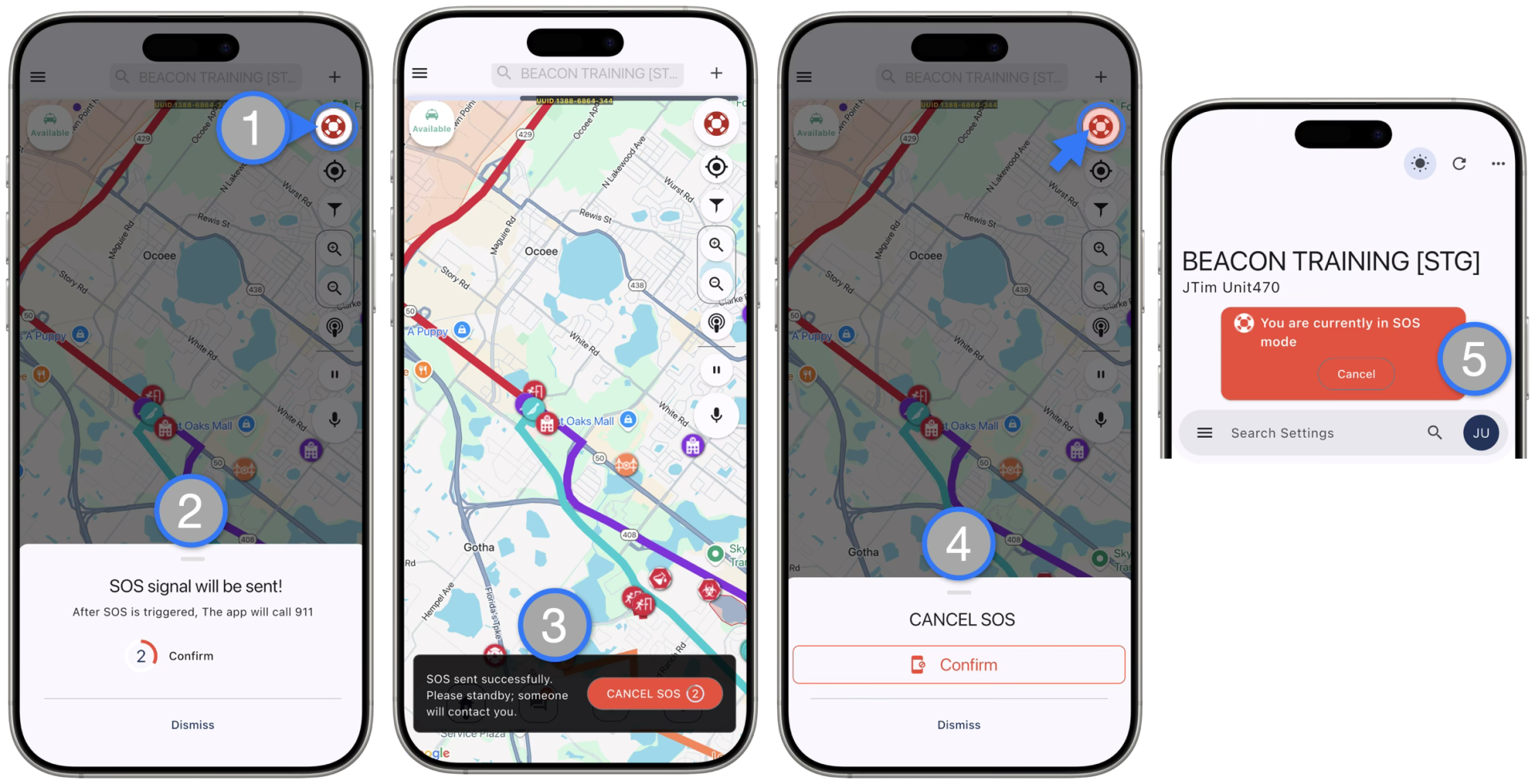
The mobile app SOS feature has been upgraded for additional capabilities, including two ways to trigger the SOS button, an option to call a pre-set Emergency Number, and the ability to Cancel the SOS

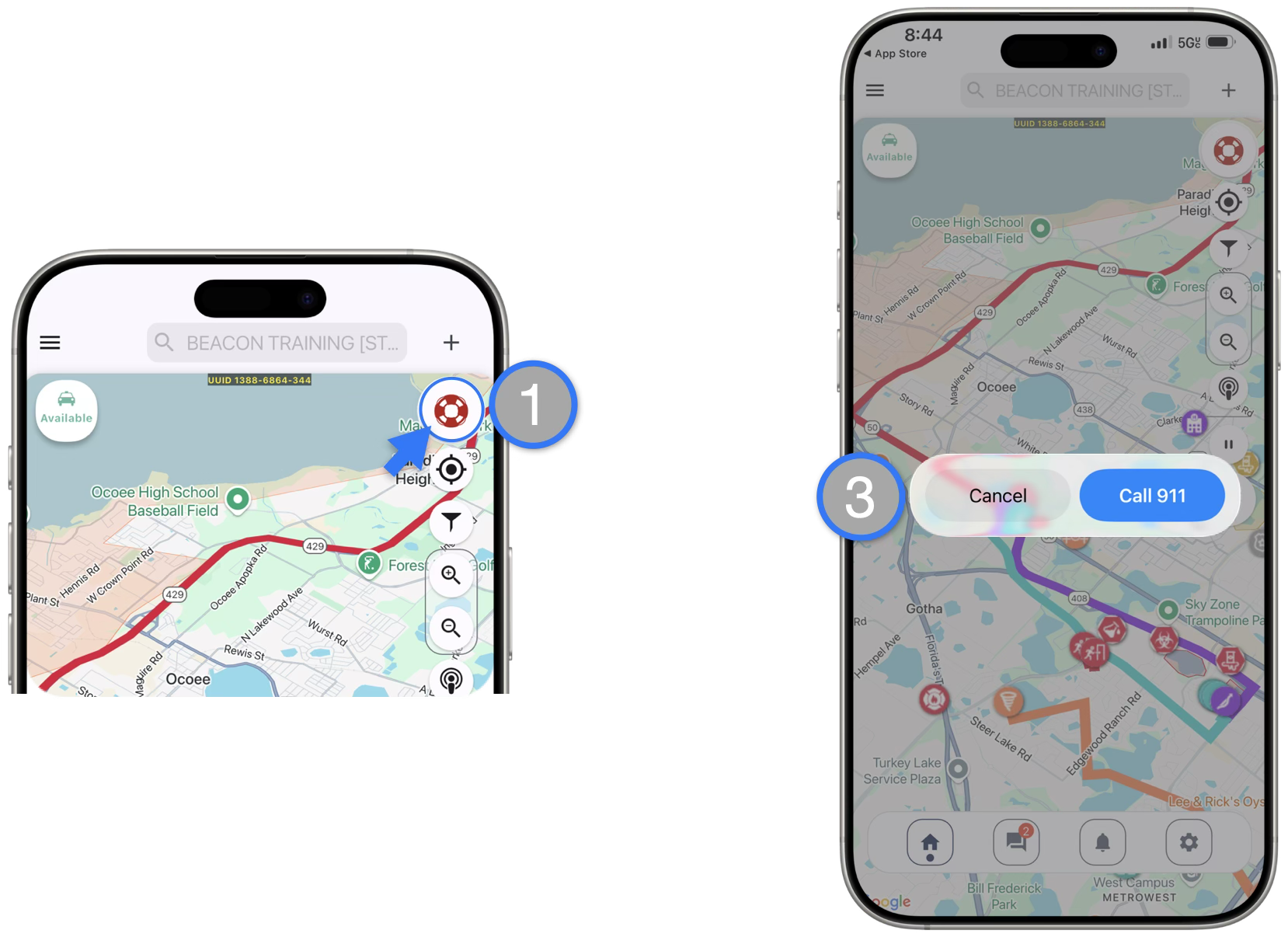
There are now two ways to trigger the SOS Button:

METHOD 1: ONE-TIME CLICK

  1. Responder clicks the SOS Button one time
  2. Responder is asked to Confirm that they want to send SOS or Dismiss
  3. If “CONFIRM” is clicked (or if the Responder doesn’t acknowledge the prompt within 3 seconds) the SOS Alerts are sent to Beacon Users
    • If the Agency has added an Emergency Number to the Web App Settings page, the Responder is also asked if they want the Emergency Number to be called
  4. The SOS can also be canceled at any time

METHOD 2: PRESS HOLD

  1. Responder holds SOS button for 3 seconds
  2. SOS Alerts are immediately sent to Beacon Users
  3. If the Agency has added an Emergency Number to the Settings page, the Responder is also asked if they want the Emergency Number to be called
  4. SOS can be canceled at any time

Introducing SOS Mode with Ability to Cancel SOS

When Pressing the SOS Button:

  1. The responder will be prompted to Confirm or Dismiss the SOS, and a three (3) second timer will be triggered with haptics (vibrations) to make the responder aware they are about to enter SOS mode.
    • If the responder makes no selection, after the 3 seconds have elapsed, they will automatically enter the SOS Mode and the SOS signal will be sent.
  2. Once the SOS request is sent, a success message will appear along with a button to Cancel SOS and a 10 second timer
  3. Once the 10 seconds has passed Responders, can press the SOS button again and Confirm to cancel the SOS Mode
  4. Responders can also Cancel SOS from the Settings page 

** Additional Notes :

  • Confirming to send or Canceling an SOS request will generate a message to the agency “All” chatroom. It will also generate a notification for web and mobile dispatchers
  • The SOS button will continuously flash red as a visual indicator for Responders when they are in SOS Mode
  • The Settings page will also display an action banner when in SOS Mode
Related Articles
  • Initial Sign In
  • Responder Types and Workflows
  • Pending Incidents Feauture
  • Duty Scheduler
  • Manager Assessment
Previous
Home Screen
Next
Map Features

Dispatcher Resources

Responder Resources

Downloads

Status

Contact Us:

 [email protected]

 ENG +1.218.4 BEACON

(+1.218.423.2266)

 ESP +1.787.336.0123

*These are not emergency phone numbers.
In case of emergencies, please call your local emergency service.
  • Privacy Policy
  • Terms of Use
  • ©2025 TREK MEDICS INTL ALL RIGHTS RESERVED