'/%3E%3Cpath%20fill='%23b2b2b2'%20d='M241%20382q0%2016%2017%2026%2017%2011%2042%2011t42-11q16-11%2017-26V269H241'/%3E%3Cpath%20fill='%239f7e00'%20d='M241%20379q0%2014%208%2023%209%209%2021%209%2014%200%2021-9%209-9%209-23V269h-59'/%3E%3Cpath%20d='M241%20339v-70h59v110q0%2014-9%2023l-6%205v-68h-15v72q-8%200-14-4v-68zm59%2040c0%2022%2015%2032%2029%2032%2021%200%2030-18%2030-32v-40h-59'/%3E%3Cpath%20fill='%239f7e00'%20d='M266%20277v5h2v12h-3v-5h2v-5h-9v5h2v5h-4v9h3v18h-5v10h34v-10h-5v-18h3v-9h-4v-5h2v-5h-9v5h2v5h-3v-12h2v-5zm42%20101q0%2010%206%2017%206%206%2015%207%2010-1%2016-7%206-7%206-17v-29h-43'/%3E%3Ccircle%20fill='%230044ad'%20cx='329.5'%20cy='372'%20r='6'/%3E%3Cellipse%20fill='%230044ad'%20cx='300'%20cy='340'%20rx='16'%20ry='21'/%3E%3C/svg%3E)

Map Layers Handling
Beacon offers an enhanced Map Layers handling feature for managers. Creating and managing layers allow for the grouping of map markers (also referred as features) that can then be used on the dashboard map to show or hide as desired.
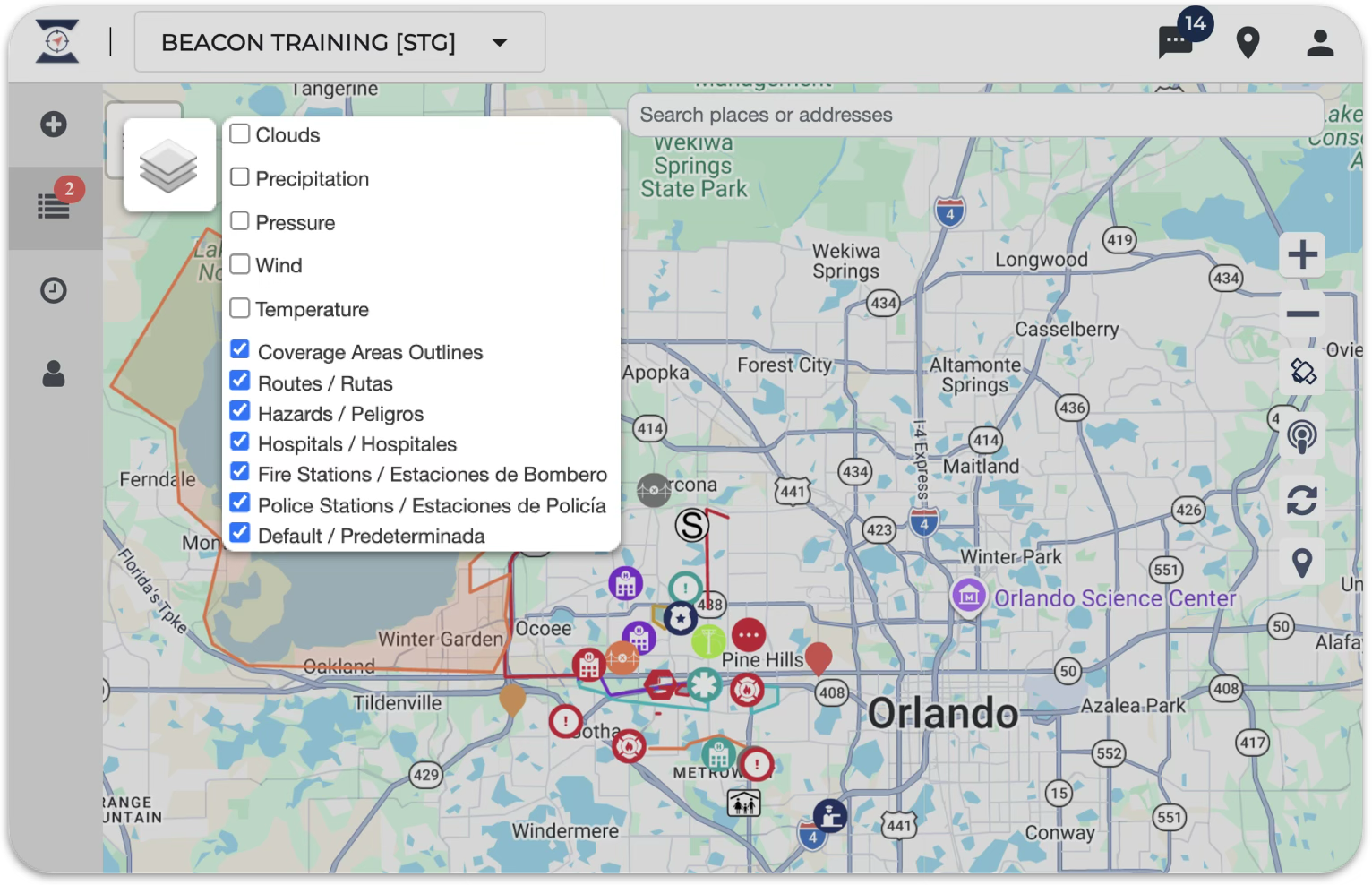
To Manage Map Layers for your Agency Account *( Only Managers can access )
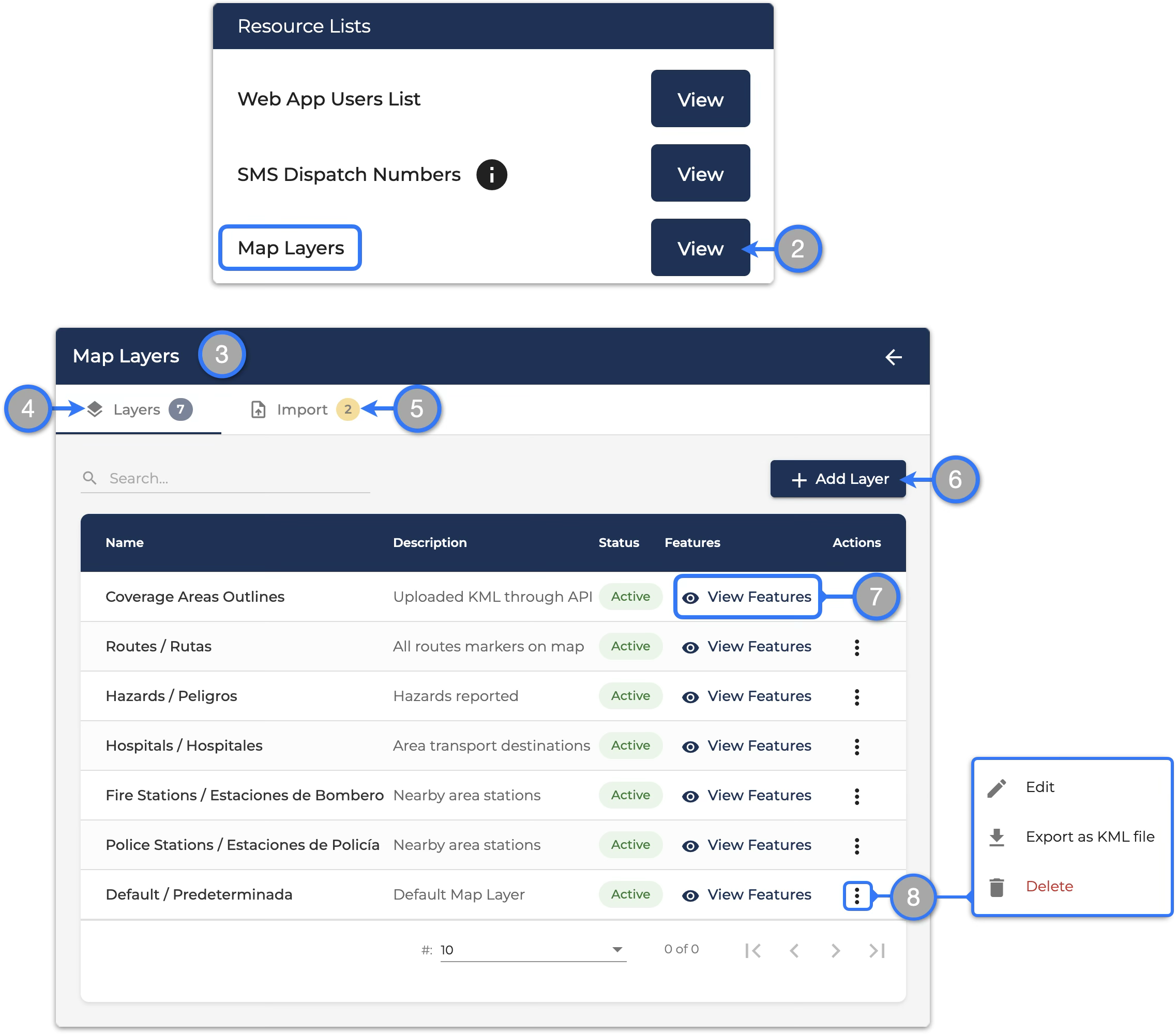
- Go to the Settings page (not shown on images)
- Locate the Resource Lists menu, and click View beside the Map Layers options
- The feature interface will open and any existing Map Layers will be listed there
Map Layers Feature Navigation:
- Layers Tab – is the main view and show the current layers available for your dashboard map
- Import Tab – can be used to import KML files as layers (see Importing KML files section to learn more)
- Add Layer – provides a quick setup option where you can add a Name and Description to create a layer that can be used immediately to group and create map markers on the dashboard map
- View Features – will open the layer view with it’s map markers listed. From here you can make quick edits (see Map Layer: Features handling section to learn more)
- Action Menu – click to see options to:
- Edit – click to edit the layer name and description
- Export as KML file – will generate and download a KML file based on the map features inside the layer
- Delete – will delete the layer and the associated map features
Importing KML files
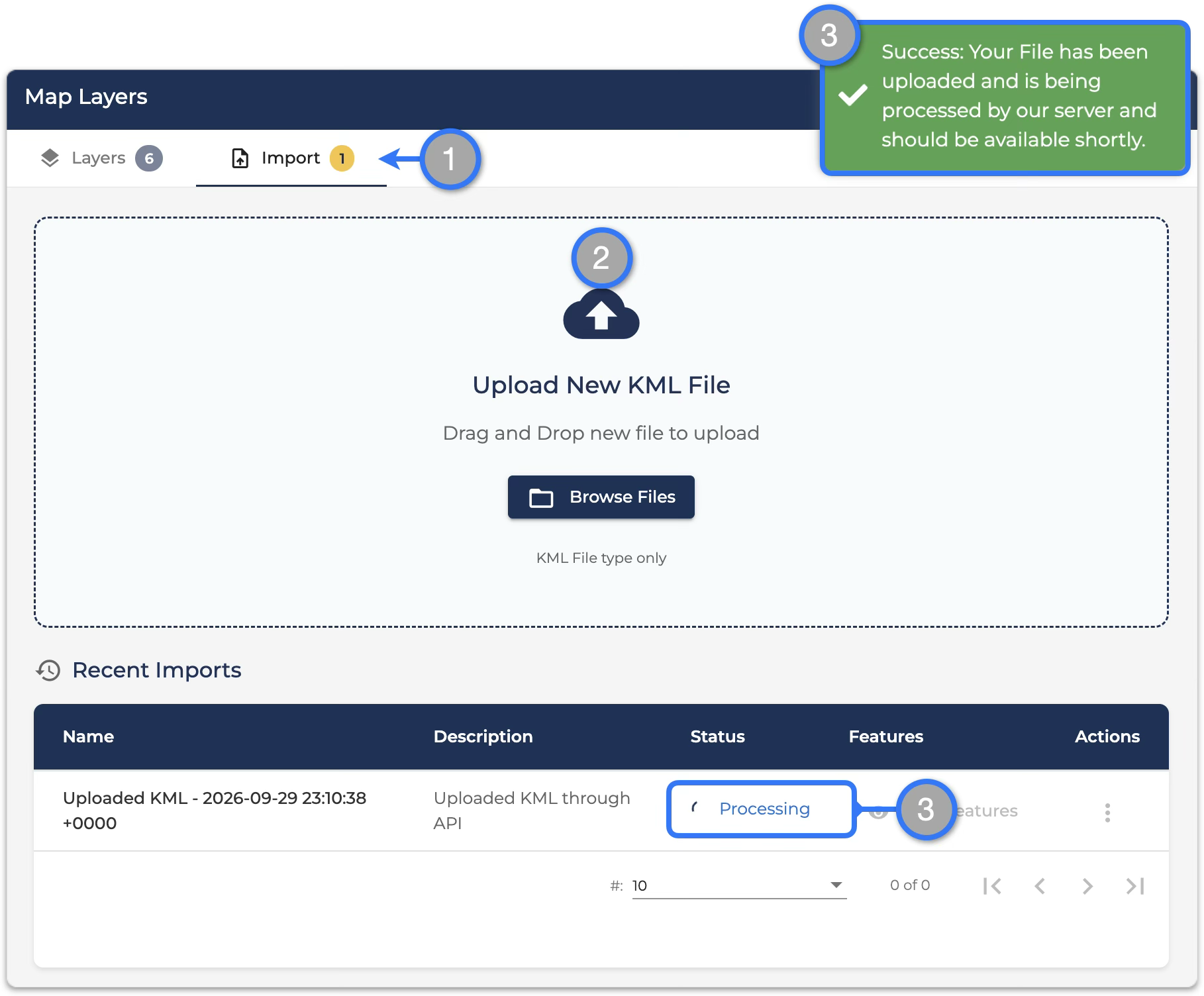
- On the Map Layers interface, go to the Import tab
- You can drag and drop or use the Browse Files button to add your KML file
- If the file type is recognized, a success message will pop up and the upload will be listed on Recent Imports below as Status: Processing
* If the status does not updates automatically please wait a moment and then refresh the page
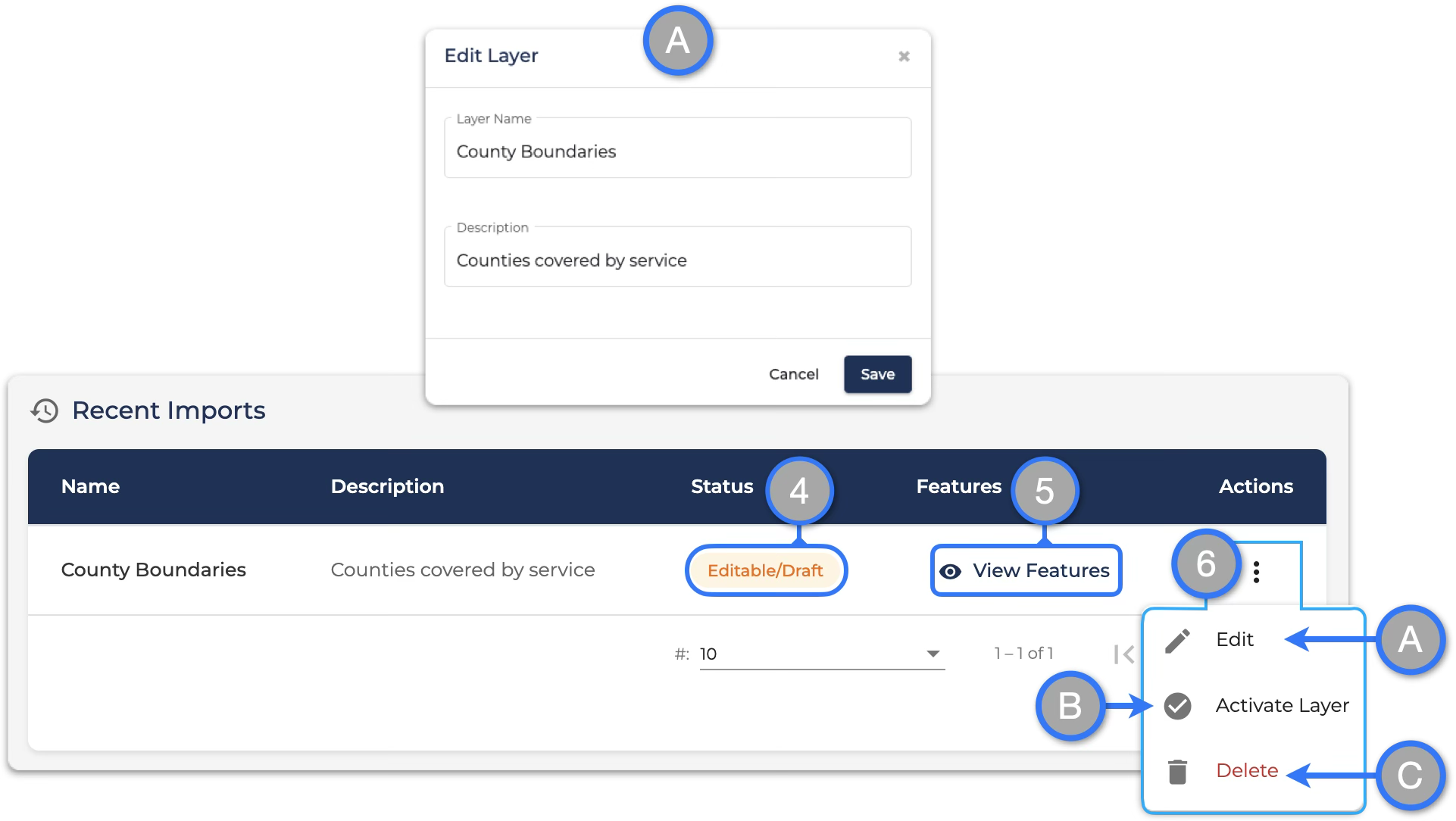
- The status will change to Editable/Draft once the map features are ready to be managed
- The View Features button will allow you to see and quickly edit the imported map markers and their details (see Map Layer: Features handling to learn more )
- Use the Action menu to:
- Edit the Layer Name and Description
- Activate Layer to make it available to use on the dashboard (please complete Map Layer: Features handling prior to activating)
- Delete and discard any progress related to the layer import and it’s map markers
Map Layer: Features handling
The instructions on this section work for both current active layers and draft layers handling.
Locate the layer you’d want to handle and click View Features (as mentioned in prior sections)
Features Editor Navigation:
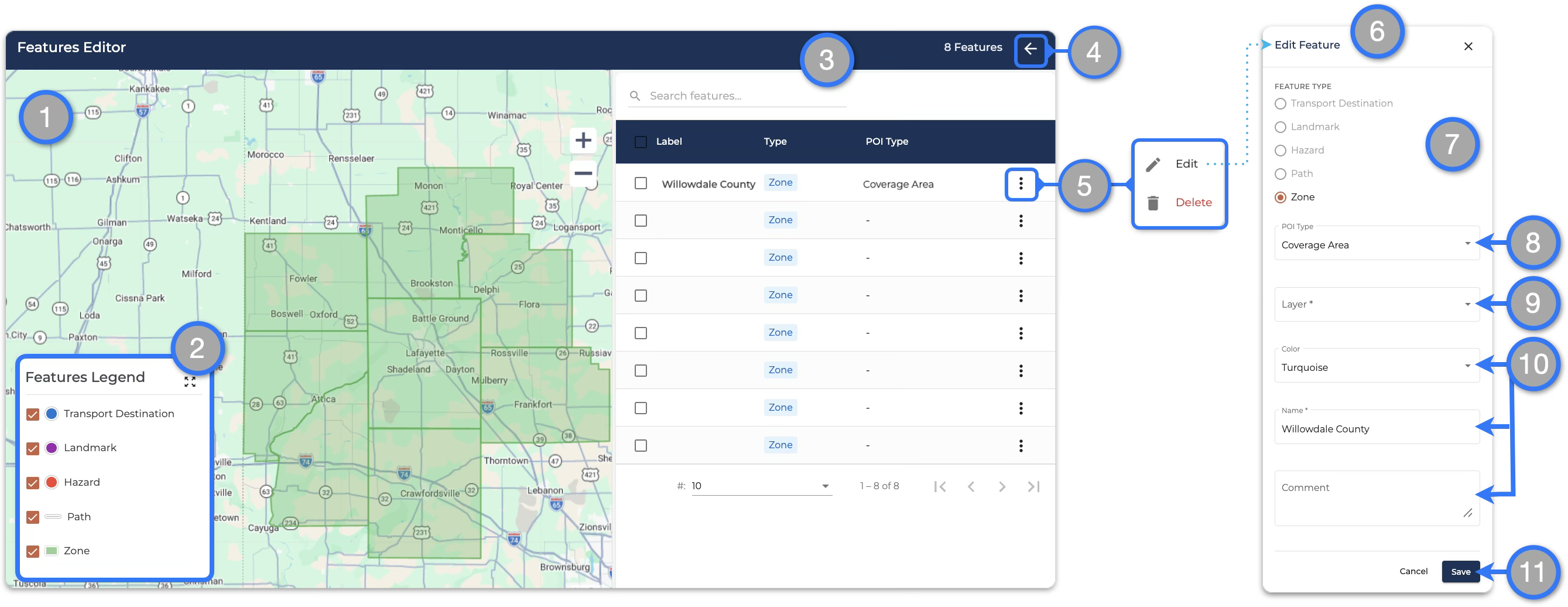
- Map View – will display the map area and the map markers (features) associated with this layer
- Legend – use it to identify the Feature Type of the markers in view
- Features List – for existing layers the list will display the markers Label Name, Feature Type and POI Type.
– For draft layers, the information shown depends on the KML file. All information needs to be filled in order to be able to activate the layer - Back button – click to go back to the Map Layers main interface
- Actions Menu – use to edit or delete the individual feature
Editing Features:
- Select Edit from the actions menu to open the form and edit the selected feature
- Confirm the Feature Type is correct. (Keep in mind that Zone and Path / Route markers are composed of multiple vectors)
- Select the preferred POI Type – POI Types options are different based on Feature Type
- Select a Layer – For existing features, you can use this to switch a marker from one layer to another. For imported KML draft you can leave it blank so they can be placed accordingly when activating the layer
- Select the marker’s display details including color, label name and any important comments
- Confirm all is correct and Save changes when complete
Open Weather Map now available in map layers
A set of climate map overlays are available to be used on the dashboard providing additional information to help manage operations and monitoring.
To activate Weather Maps:
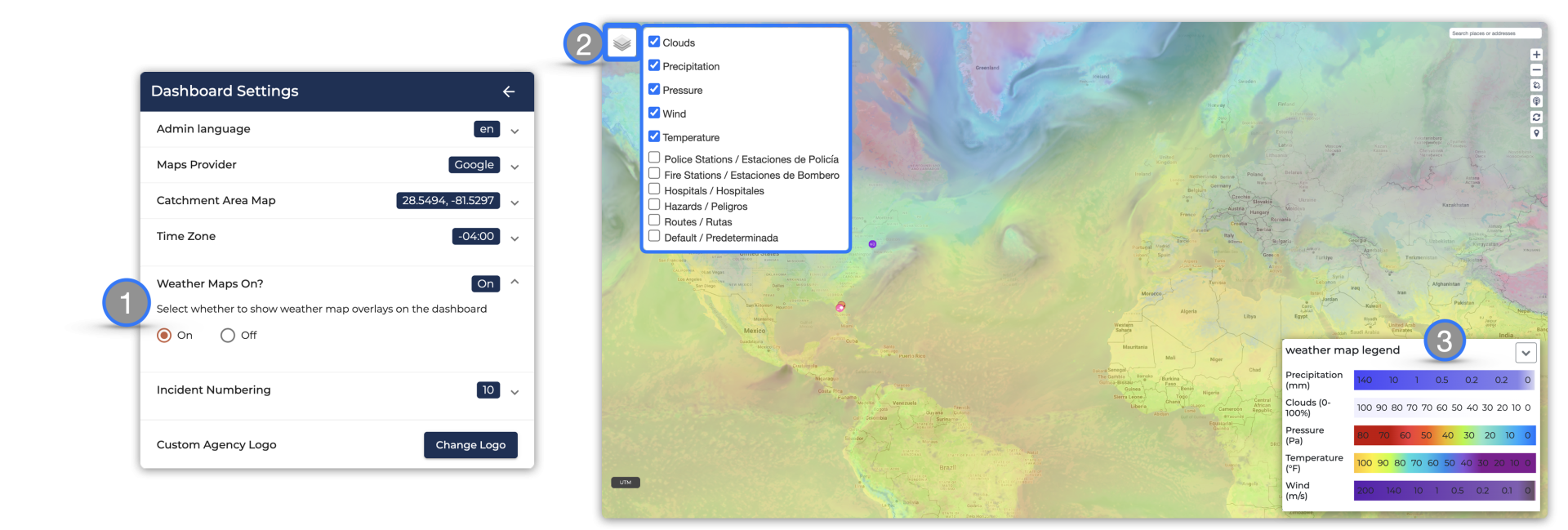
- Go to the Dashboard Settings and switch the Weather Maps to On *( Only Managers can access )
- On the Dashboard, display/hide the weather layers by checking/unchecking the box for each
- A legend will be shown for weather layers currently displayed