'/%3E%3Cpath%20fill='%23b2b2b2'%20d='M241%20382q0%2016%2017%2026%2017%2011%2042%2011t42-11q16-11%2017-26V269H241'/%3E%3Cpath%20fill='%239f7e00'%20d='M241%20379q0%2014%208%2023%209%209%2021%209%2014%200%2021-9%209-9%209-23V269h-59'/%3E%3Cpath%20d='M241%20339v-70h59v110q0%2014-9%2023l-6%205v-68h-15v72q-8%200-14-4v-68zm59%2040c0%2022%2015%2032%2029%2032%2021%200%2030-18%2030-32v-40h-59'/%3E%3Cpath%20fill='%239f7e00'%20d='M266%20277v5h2v12h-3v-5h2v-5h-9v5h2v5h-4v9h3v18h-5v10h34v-10h-5v-18h3v-9h-4v-5h2v-5h-9v5h2v5h-3v-12h2v-5zm42%20101q0%2010%206%2017%206%206%2015%207%2010-1%2016-7%206-7%206-17v-29h-43'/%3E%3Ccircle%20fill='%230044ad'%20cx='329.5'%20cy='372'%20r='6'/%3E%3Cellipse%20fill='%230044ad'%20cx='300'%20cy='340'%20rx='16'%20ry='21'/%3E%3C/svg%3E)

Summary Reports provide a summary of all incidents in a data center over a given period of time.
Beacon now offers different file type options when generating a report:
- The classic Excel report spreadsheet that can be manipulated and filtered to query the available data.
- A CSV file type is also available for immediate download
- A PDF version is now available as an option when generating the Summary Report. This version has Averages time and interval information, includes a map that displays incident clusters on areas and pie charts are generated based on Incident Classes | Categories | Types
To generate and download a summary report:
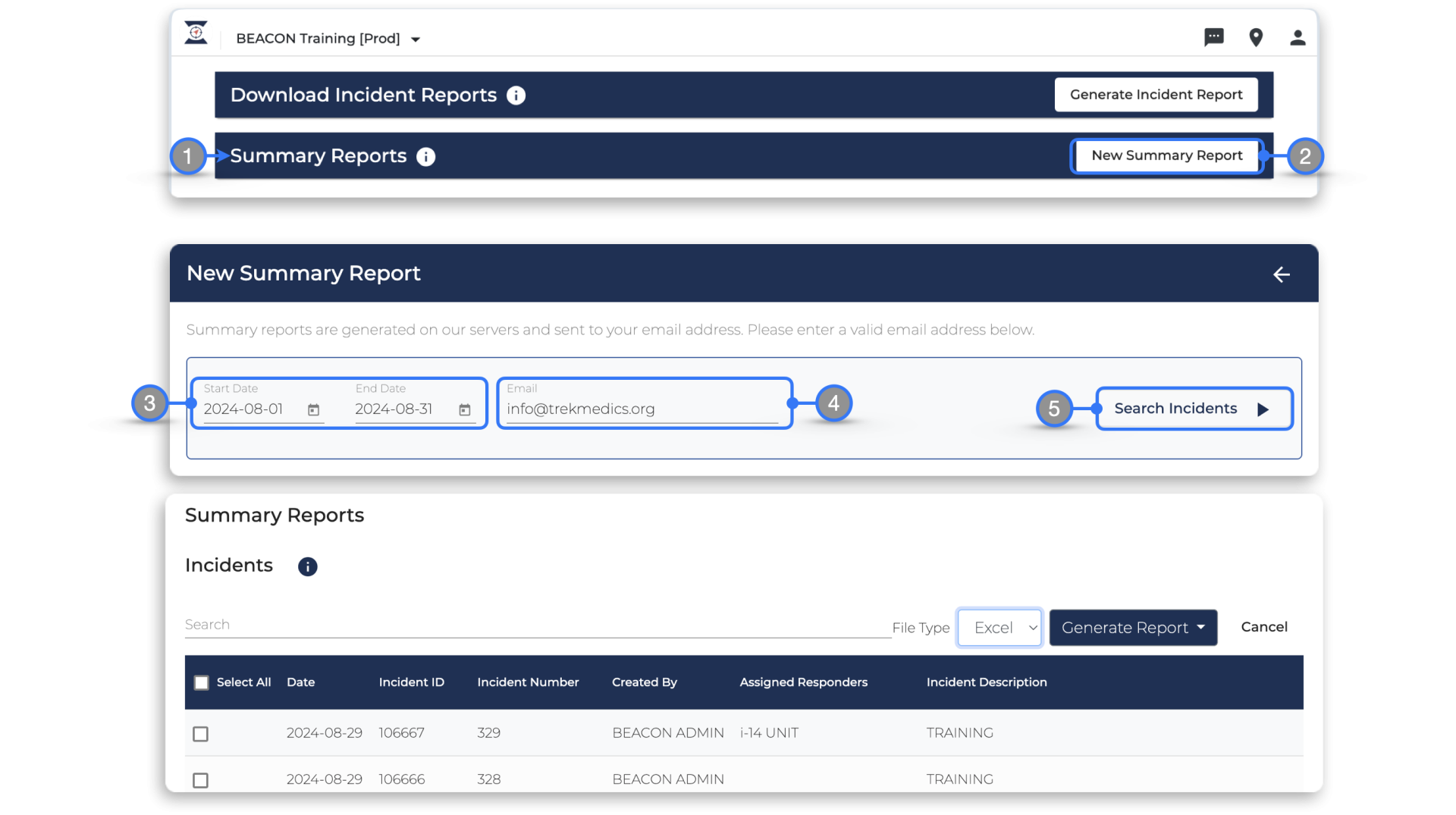
- On the incidents page, locate Summary Reports header
- Click the New Summary Report button
- On the New Summary Report screen Select the start and end date for the summary report you want to generate
- Enter the email address where you would want the summary report to be delivered
- Click Search Incidents to view the incidents lists within the selected dates
The Summary Reports interface displays a table view of the incidents that were created within the date range selected with partial information.
There are two ways to generate Summary Reports.
To generate a Summary Report from all incidents within the selected date range:
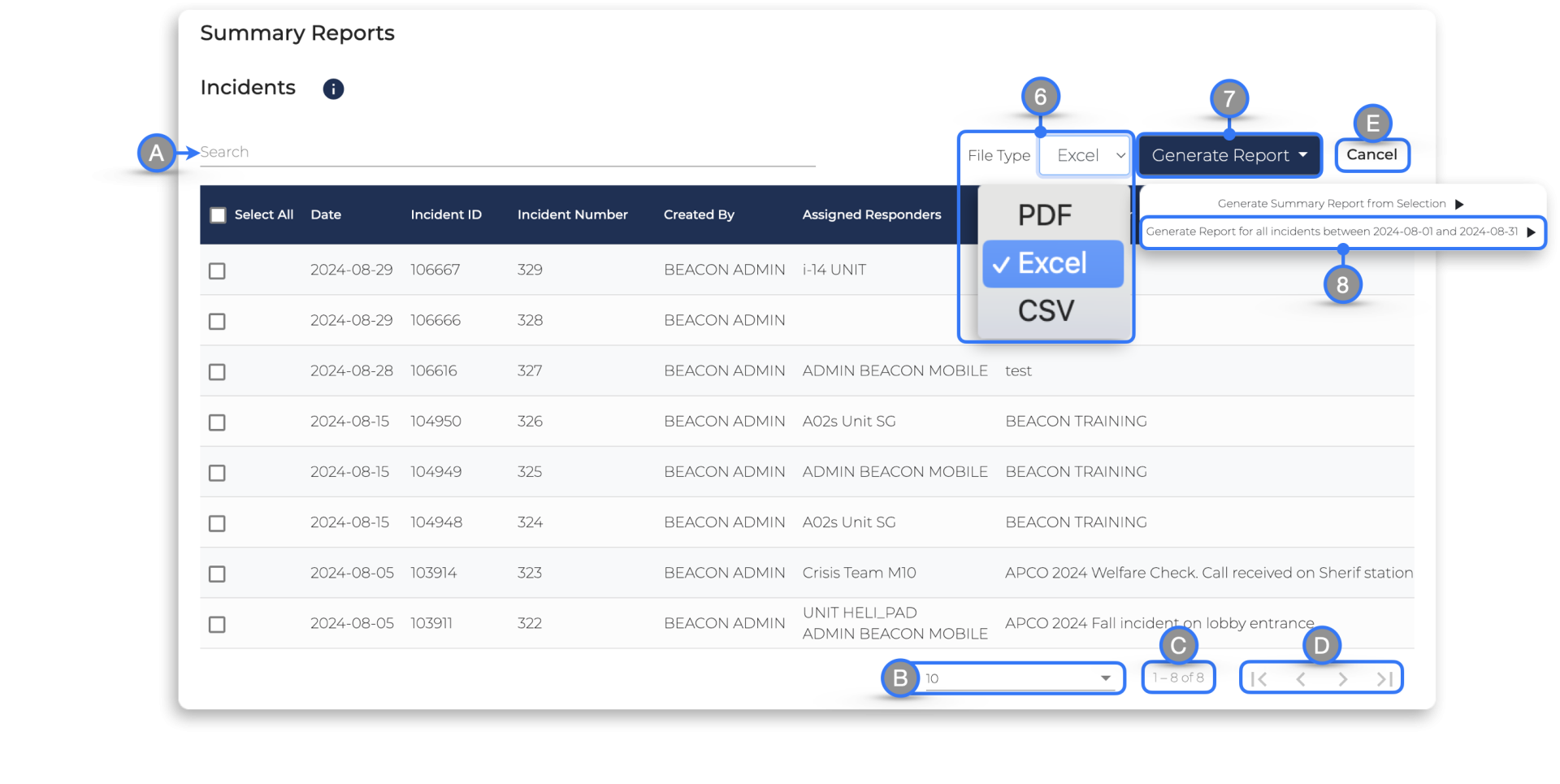
- Select the File Type
- Click Generate Report
- Select “Generate Report for all incidents between …” from the options
- Beacon will generate the report and start downloading automatically to the local device. If a large amount of incidents were included in the report, Beacon will need a bit more time to generate and download the report.
Continue scrolling to learn how to generate a Summary Report from selection
Summary Report interface Navigation :
- Search tool — use the search bar to enter key words or information and filter incidents
- Number of incidents to display per page
- Current displayed incidents of total
- Page navigation arrows
- Cancel — click to exit the Summary Reports interface
To generate a Summary Report from selection:
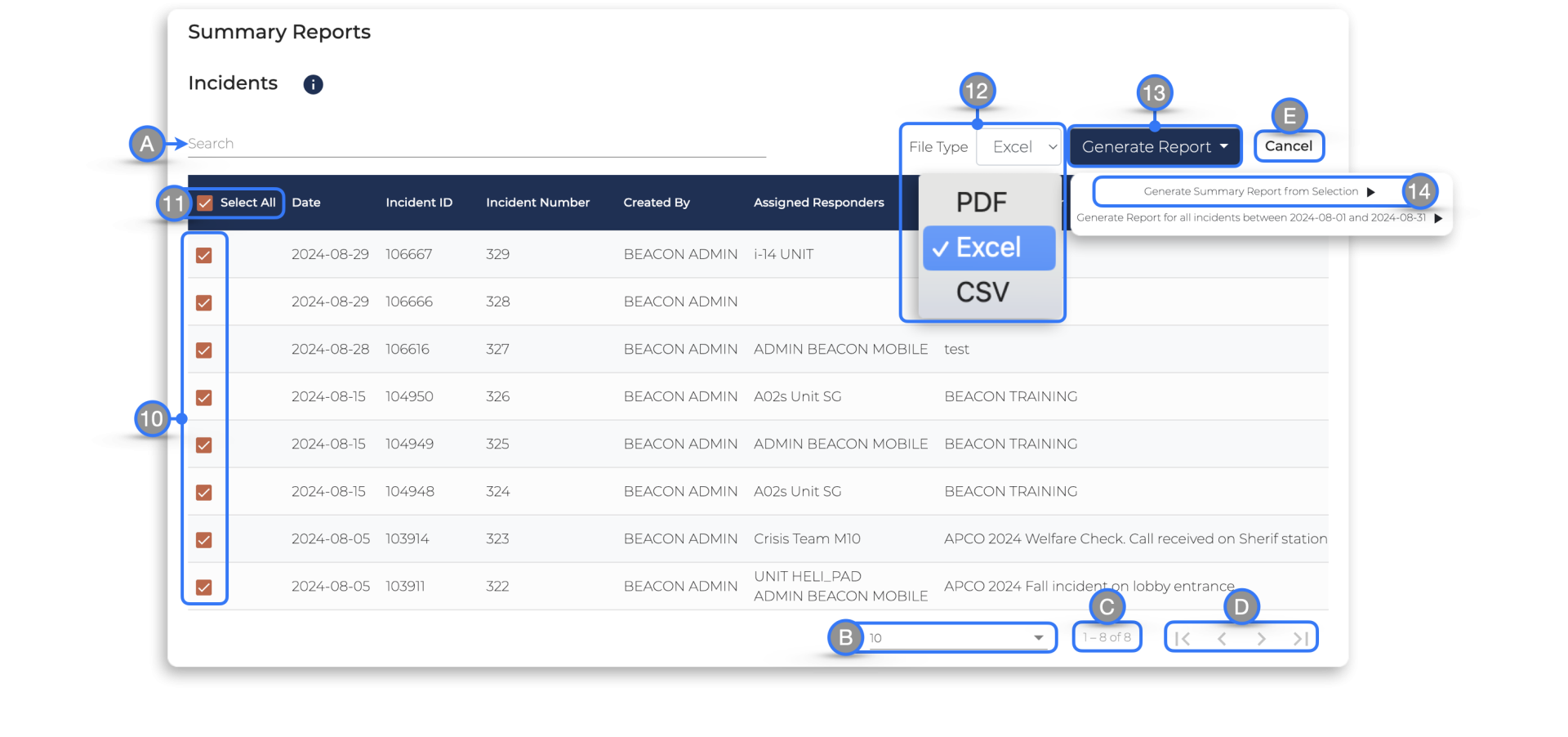
- Use the checkboxes to the left to indicate which incidents from the current page you want included on the finalized report.
- Select All can be used to check all the boxes for the incidents in the current page. If you wan to include multiple full pages you will need to navigate to each page and click the Select All checkbox. Checked incidents are saved on memory for convenience when navigating between pages
- When ready Select the File Type
- Click Generate Report
- Select “Generate Report from selection” from the options
- Beacon will generate the report and start downloading automatically to the local device. If a large amount of incidents were included in the report, Beacon will need a bit more time to generate and download the report.
Summary Report interface Navigation :
- Search tool — use the search bar to enter key words or information and filter incidents
- Number of incidents to display per page
- Current displayed incidents of total
- Page navigation arrows
- Cancel — click to exit the Summary Reports interface
PDF Summary Report Preview
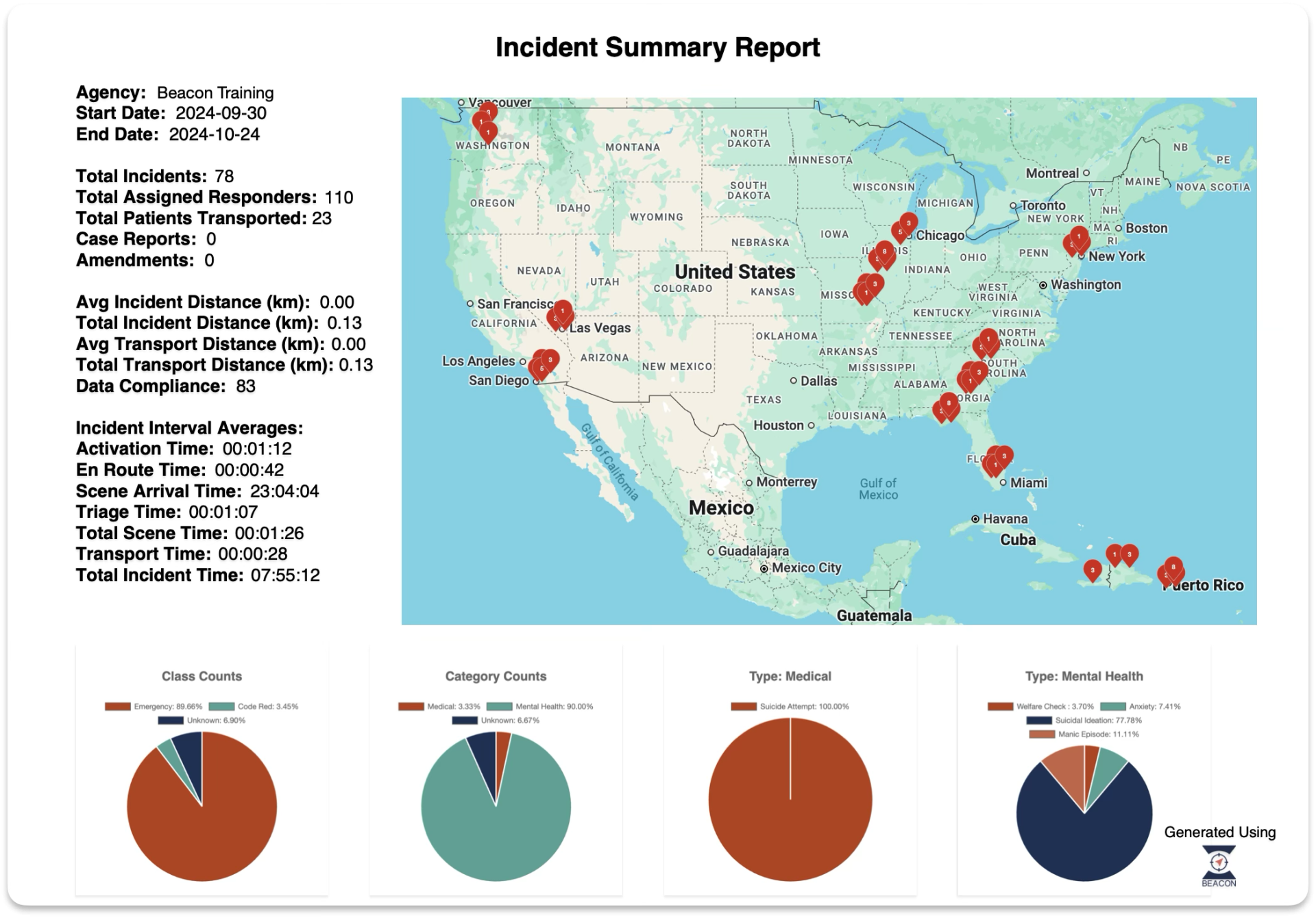
The PDF download of a Summary Report includes a reference map with the markers and clusters for the incidents included along with general and key information like Incident Interval Averages.
Generating a PDF Summary Report will also include pie chart elements to help visualize percentage counts for Incident Class, Category and Type.