'/%3E%3Cpath%20fill='%23b2b2b2'%20d='M241%20382q0%2016%2017%2026%2017%2011%2042%2011t42-11q16-11%2017-26V269H241'/%3E%3Cpath%20fill='%239f7e00'%20d='M241%20379q0%2014%208%2023%209%209%2021%209%2014%200%2021-9%209-9%209-23V269h-59'/%3E%3Cpath%20d='M241%20339v-70h59v110q0%2014-9%2023l-6%205v-68h-15v72q-8%200-14-4v-68zm59%2040c0%2022%2015%2032%2029%2032%2021%200%2030-18%2030-32v-40h-59'/%3E%3Cpath%20fill='%239f7e00'%20d='M266%20277v5h2v12h-3v-5h2v-5h-9v5h2v5h-4v9h3v18h-5v10h34v-10h-5v-18h3v-9h-4v-5h2v-5h-9v5h2v5h-3v-12h2v-5zm42%20101q0%2010%206%2017%206%206%2015%207%2010-1%2016-7%206-7%206-17v-29h-43'/%3E%3Ccircle%20fill='%230044ad'%20cx='329.5'%20cy='372'%20r='6'/%3E%3Cellipse%20fill='%230044ad'%20cx='300'%20cy='340'%20rx='16'%20ry='21'/%3E%3C/svg%3E)

The mobile app SOS feature offers various capabilities, including the ability to the ability to Cancel an SOS and an option to call a pre-set Emergency Number
How to trigger and then cancel SOS:
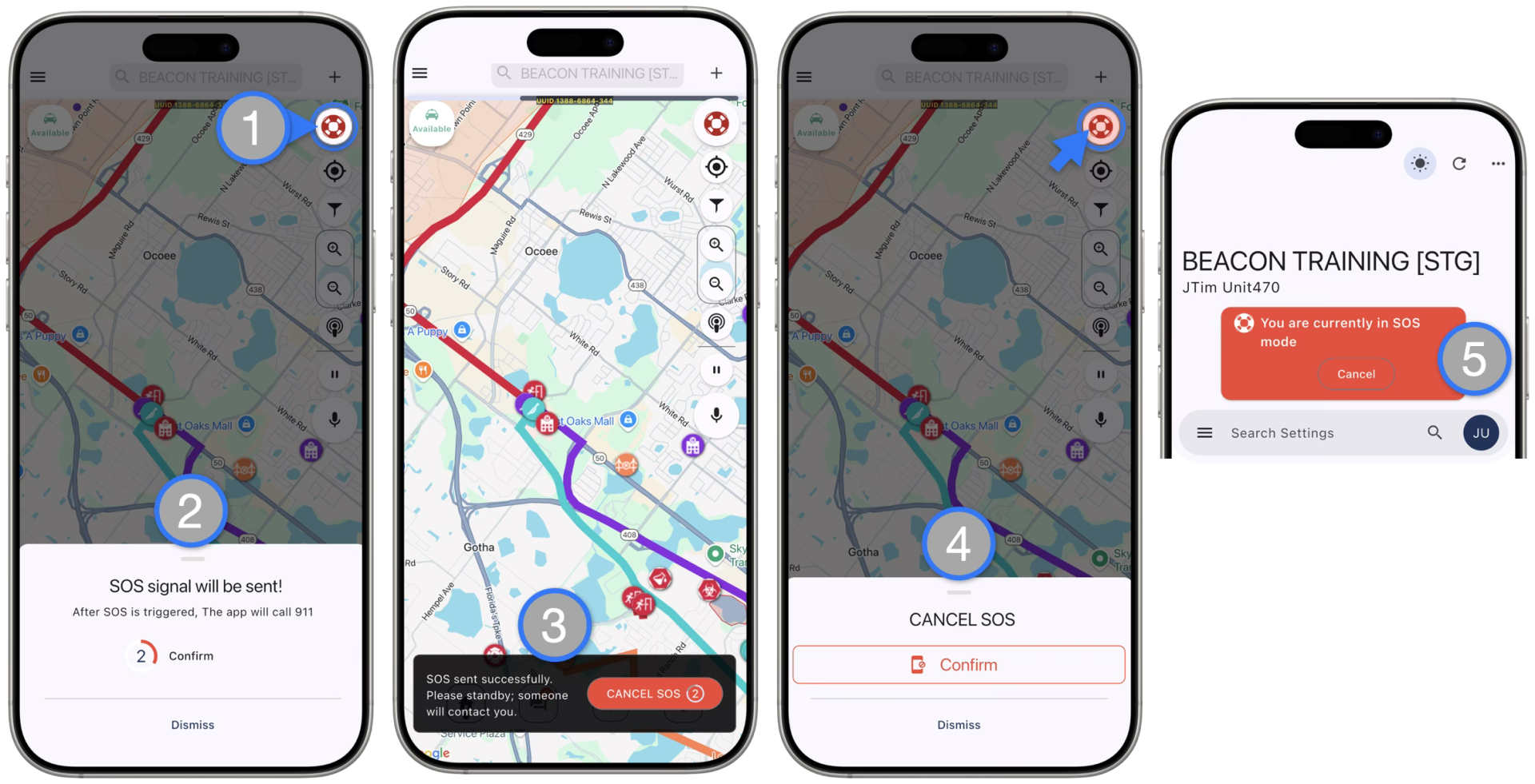
- Tap the SOS button located on the top right corner of the map in the app Home Screen
- You will be prompted to Confirm or Dismiss the SOS, and a three (3) second timer will be triggered with haptics (vibrations) to make the responder aware they are about to enter SOS mode.
- If the responder makes no selection, after the 3 seconds have elapsed, they will automatically enter the SOS Mode and the SOS signal will be sent.
- Once the SOS request is sent, a success message will appear along with a button to Cancel SOS and a 10 second timer
- Once the 10 seconds has passed Responders, can press the SOS button again and Confirm to cancel the SOS Mode
- Responders can also Cancel SOS from the Settings page
** Additional Notes :
- Confirming to send or Canceling an SOS request will generate a message to the agency “All” chatroom. It will also generate a notification for web and mobile dispatchers
- The SOS button will continuously flash red as a visual indicator for Responders when they are in SOS Mode
- The Settings page will also display an action banner when in SOS Mode
Pre-set Emergency Number for SOS feature
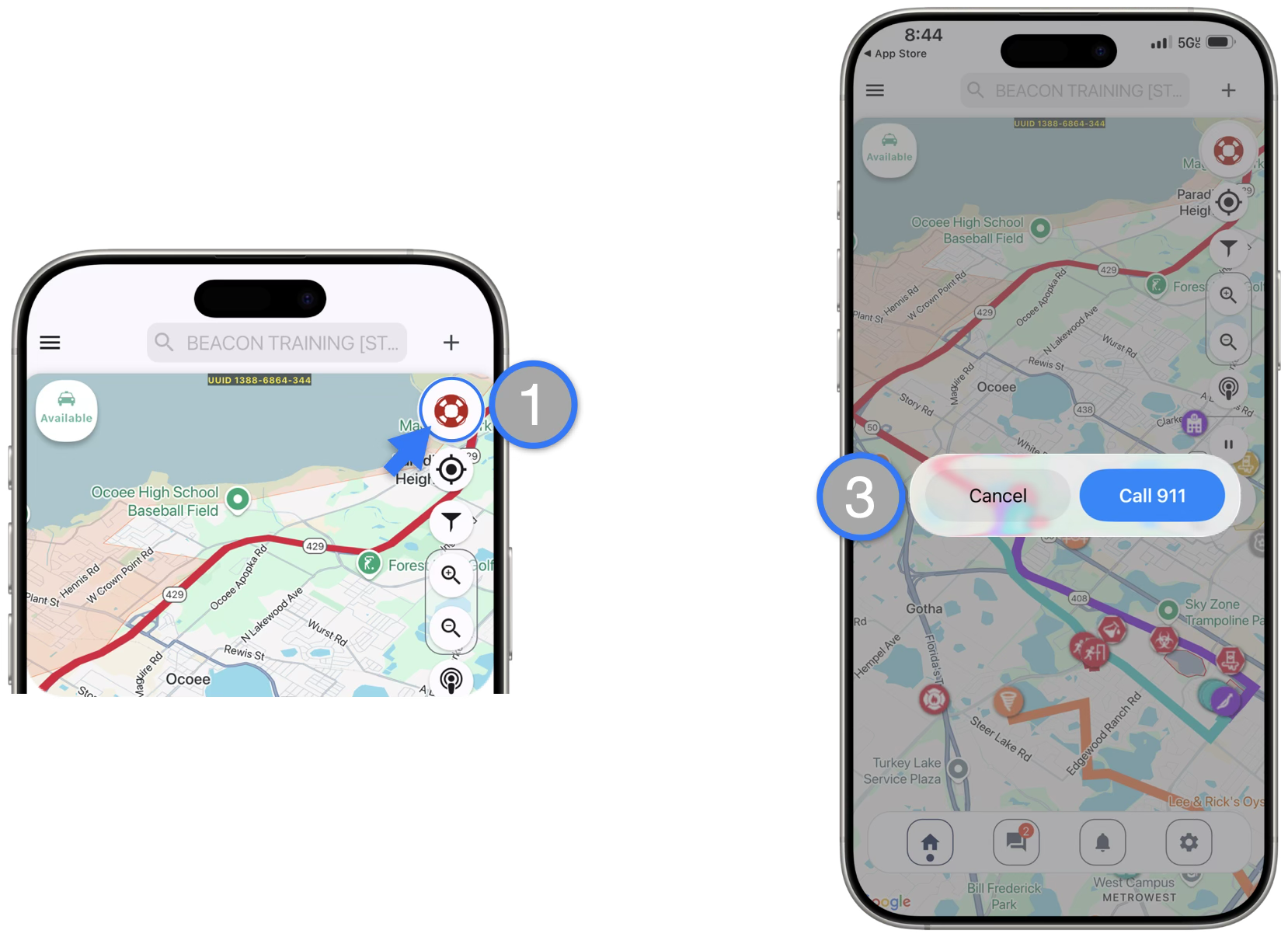
- Responder taps the SOS Button one time
- Responder is asked to Confirm that they want to send SOS or Dismiss (not shown on image)
- If “CONFIRM” is clicked (or if the Responder doesn’t acknowledge the prompt within 3 seconds) the SOS Alerts are sent to Beacon Users
- If the Agency has added an Emergency Number to the Web App Settings page, the Responder is also asked if they want the Emergency Number to be called (see previous slide for more details)