The Settings page allows responders to configure the app and account preferences.
Navigation: Settings Page v7.0 +
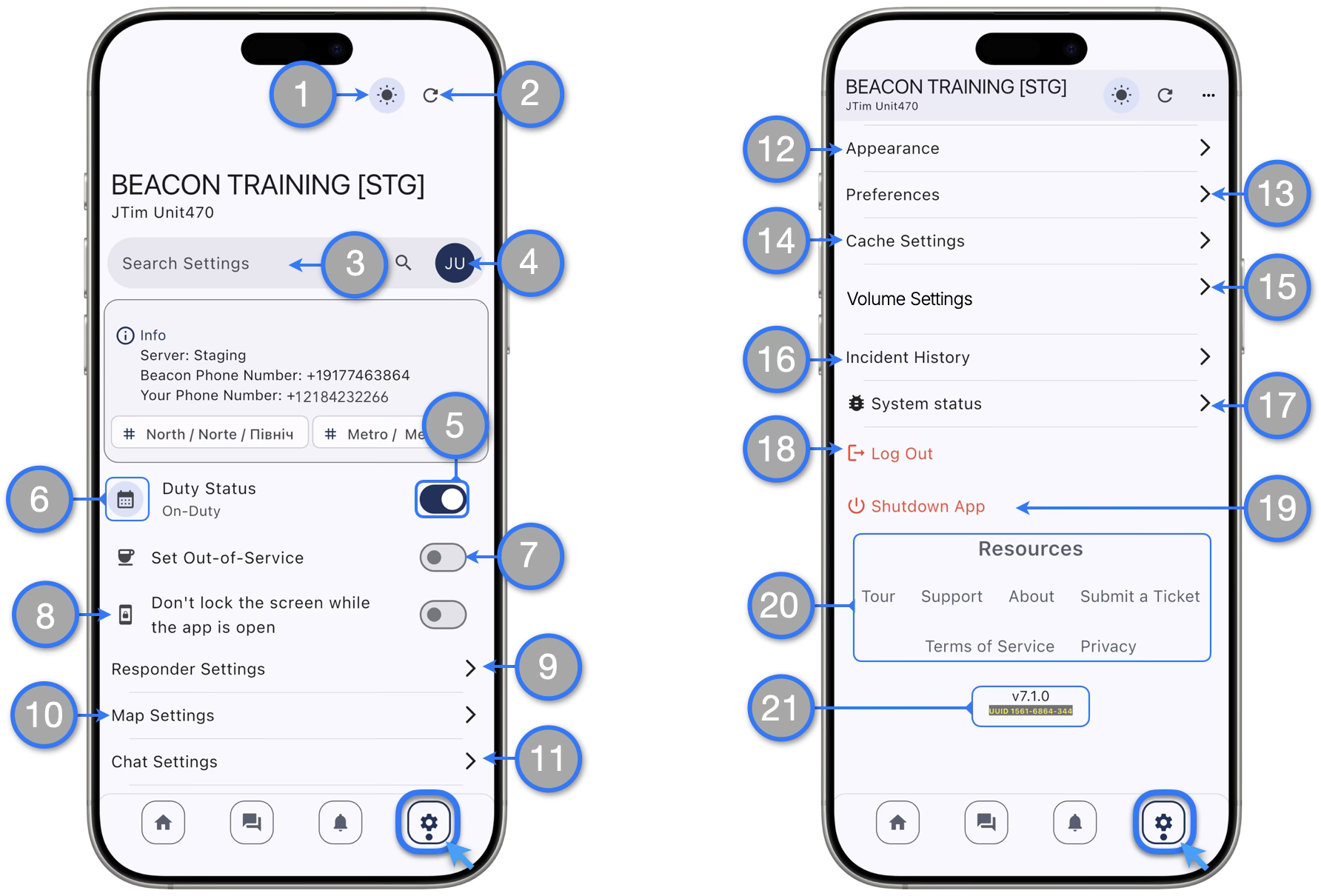
- Night Shift Mode button accessible at the top of the page to easily switch Beacon between light and dark theme
- Settings Refresh button to update account and Agency settings on your device.
- Settings Search Bar works to search deep menus
- Account Details displays all information relevant to the responder account and also technical information useful for when requesting support.
- Duty Status Switch — Use this switch to put yourself On or Off-Duty
- Duty Scheduler — Tap the icon to access the duty scheduler interface and select dates and times to automatically put yourself On or Off-Duty
- Set Out-of-Service — Enable / Disable Out-of-Service indicator for your responder account
- Don’t Lock the screen while the app is open — Enable to prevent the device screen from locking while using the app
- Responder Settings — All settings related to the responder account are now grouped here: Responder Type, Transport Mode, GPS Tracking, and more.
- Map Settings — All settings related to map handling: Markers Size, Map Cache, Resolution and more.
- Chat Settings — Use these settings to manage Chat Messages cached data and other chat related settings.
- Appearance — Includes all configurations to change how the app interface looks: Night Mode, Color Scheme, Interface Animation, Visual Density and more.
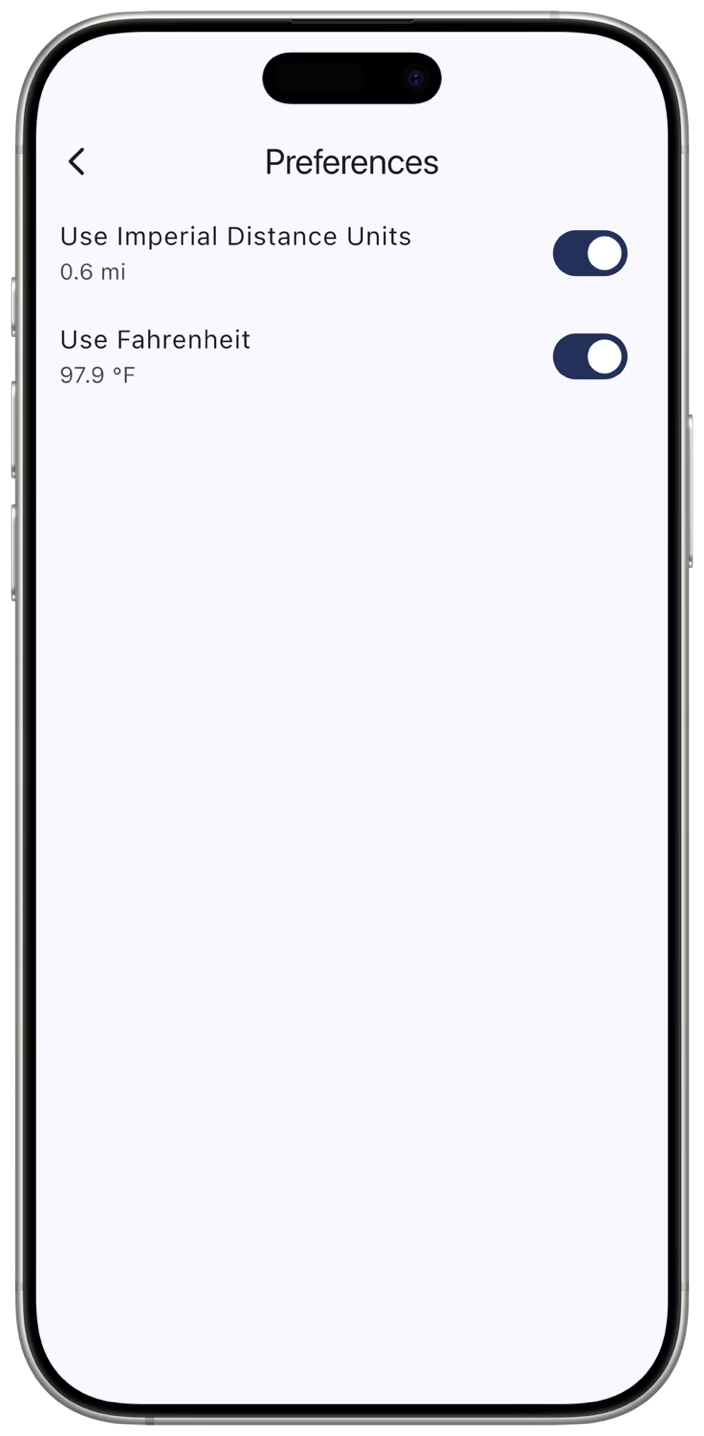
- Preferences — Includes user preferences for measurement units. More options to be included in the future.
- Cache Settings — Handles all cache mechanisms from this menu: Images, Map and Chats cache.
- Volume Settings — Volume settings control the In-App notifications and messages sound and vibration
- Incident History — Access this option to see all incident history from your Agency and add responder documentation to the incidents that you have responded to.
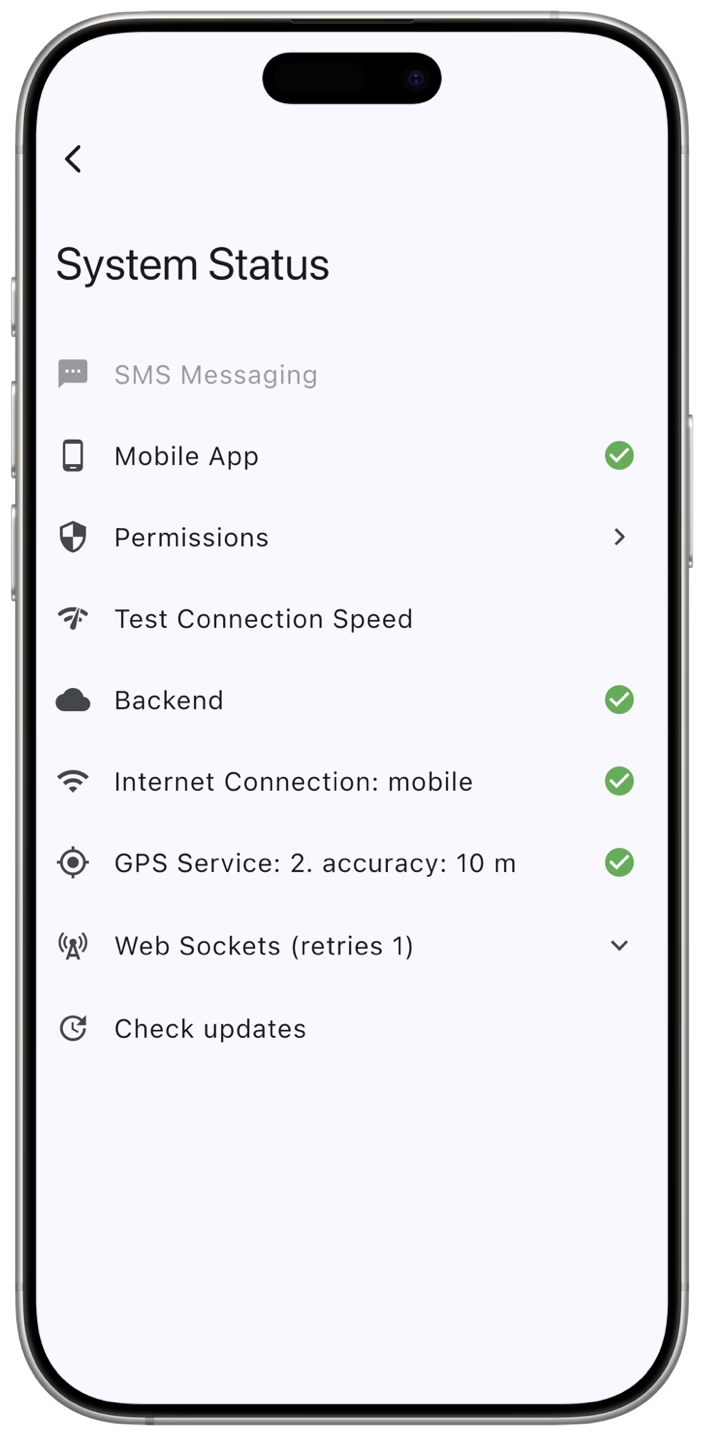
- System Status — Provides reference on how the system and the communications with the Beacon servers are working.
- Log Out — Pressing this button will end the current session and redirect to the initial Sign In screen on of the Beacon mobile app
- Shutdown App — Use this button to hard refresh the mobile app; pressing it will close the Beacon mobile app
- Resources — These are series of resources and information about Beacon and Trek Medics including links to our Support learning pages and the Submit a Ticket form for support requests
- Beacon Version Number and Unique ID — Useful to include when sending support requests.
See the different settings menu options in detail below
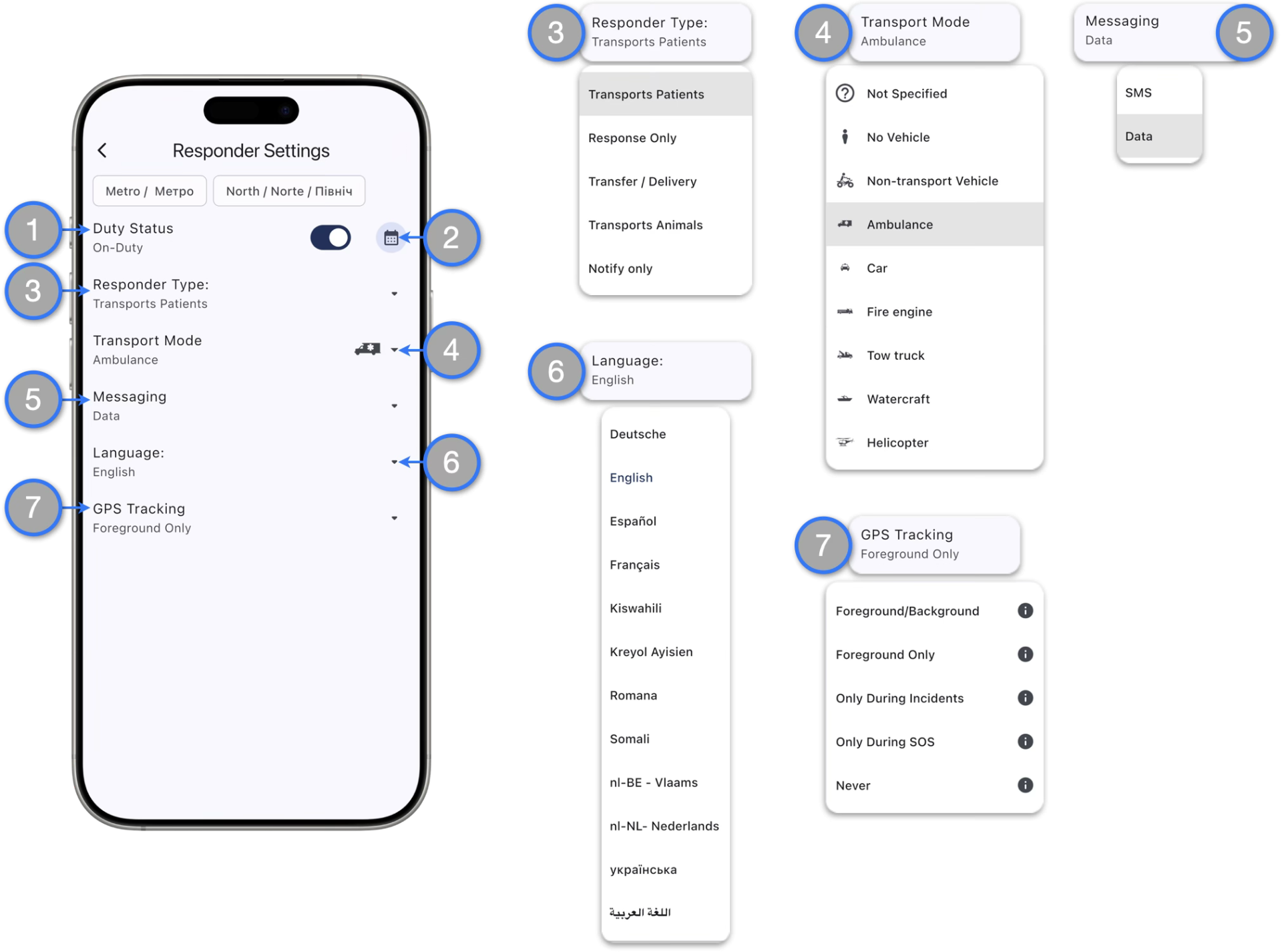
- Duty Status Switch — Use this switch to put yourself On or Off-Duty
- Duty Scheduler — Tap the icon to access the duty scheduler interface and select dates and times to automatically put yourself On or Off-Duty
- Responder Type — Beacon offers different types of responder workflows to navigate responders through incidents:
- Patient Transport (e.g., paramedics, EMTs, MCR)
- Response Only (e.g., firefighters, search and rescue, community responders)
- Animal Transport (e.g., animal rescue, animal control)
- Transfer / Delivery (e.g, inter-facility transfers, dialysis, supply)
- Notification Only (e.g, for agencies that only need Responders to acknowledge)
- Transport Mode — Are icons that users can select for easy identification; they do not affect workflow messages or interaction with incidents
- Messaging — Use to switch from Data to SMS workflow when instructed or when data connectivity is not available; please consult your management team before switching to SMS to avoid any additional charges
- Language — Select your display language from the list; your selection will only be applied to your account and not affect your colleagues
- GPS Tracking — These are the internal settings that Beacon uses to determine when to track and share your device location with your Dispatch and Supervisory team. Additional device settings on the OS level are required for these capabilities to function correctly.
Please visit our dedicated section GPS Settings & Tracking Services to learn more how to correctly setup and use the Beacon GPS Capabilities
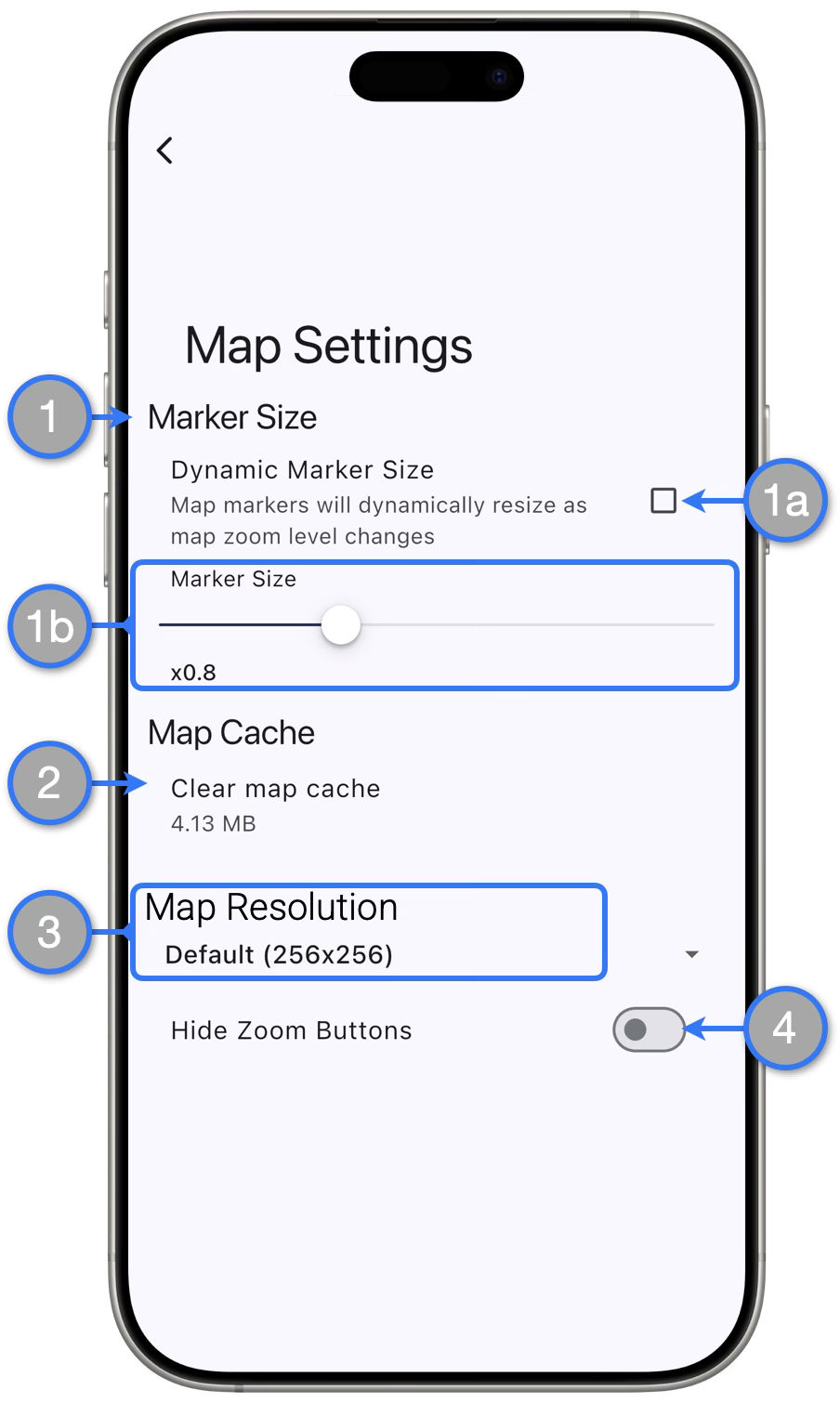
- Marker Size — Will control how map markers are displayed:
- Dynamic Marker Size – check the box to let Beacon auto-adjust the size of Beacon Map Markers as you zoom in / out on the map
- Marker Size Slider – Use the slider to select a the a static display size for Beacon Map Markers
- Map Cache — Displays the size amount of map tiles cached; tap Clear map cache to free
- Map Resolution — Only applicable when using Open Street Maps; switch between Default, Medium and Low depending on the level of detail needed
- Hide Zoom Buttons — Toggle On to hide the Zoom Buttons located on the Home Screen Map
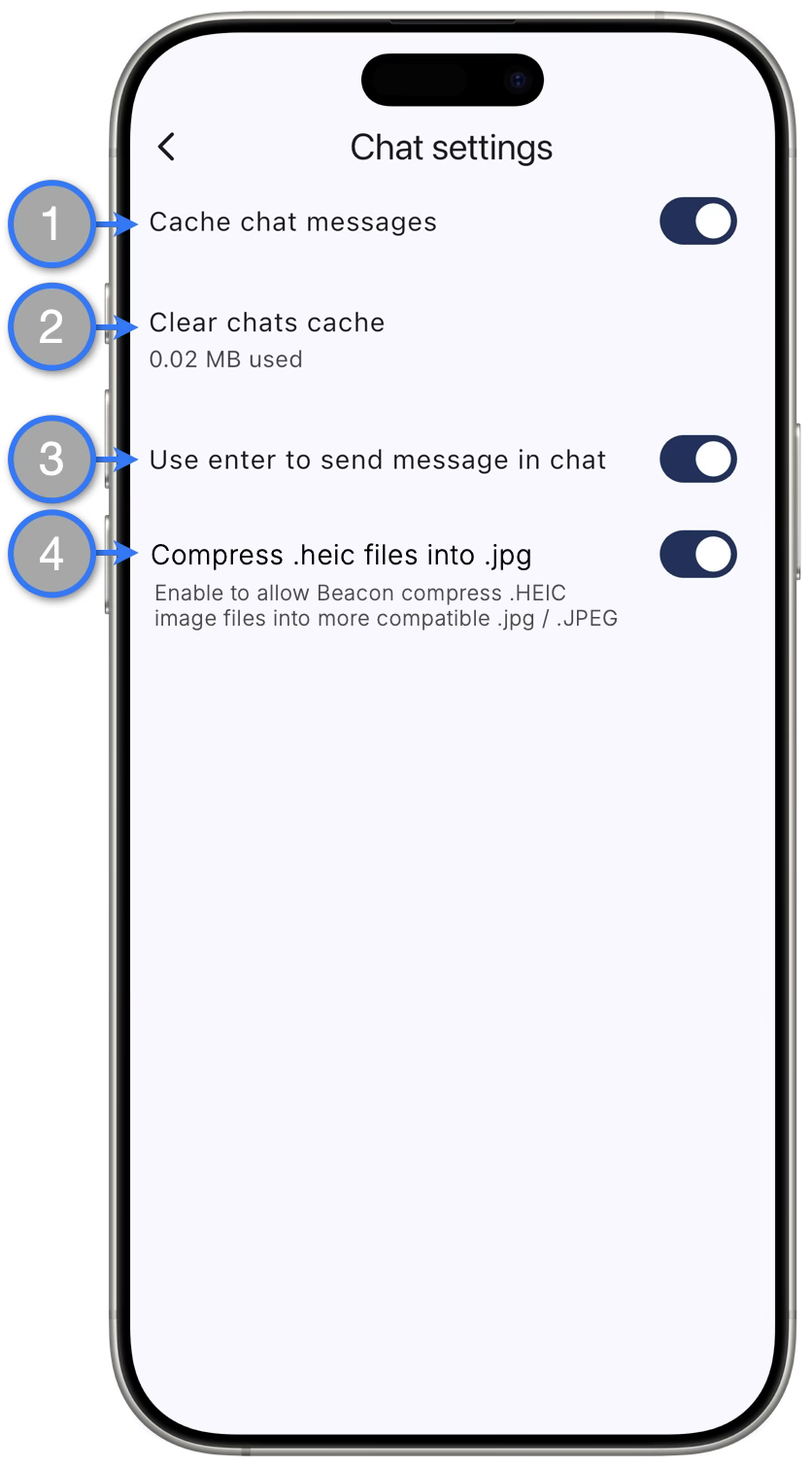
- Cache chat messages — Toggle to cache chat messages as you read them for optimized opening of chat rooms; uses cache to open and load chats when connection is slow
- Clear chats cache — Shows the amount of memory used for cached chats; tap to clear the cached chats memory
- Use enter to send message in chat — Toggle to enable the Enter / Return key as your send message button
- Convert HEIC to JPG — Enable to allow Beacon compress .HEIC image files into more compatible .jpg / .JPEG
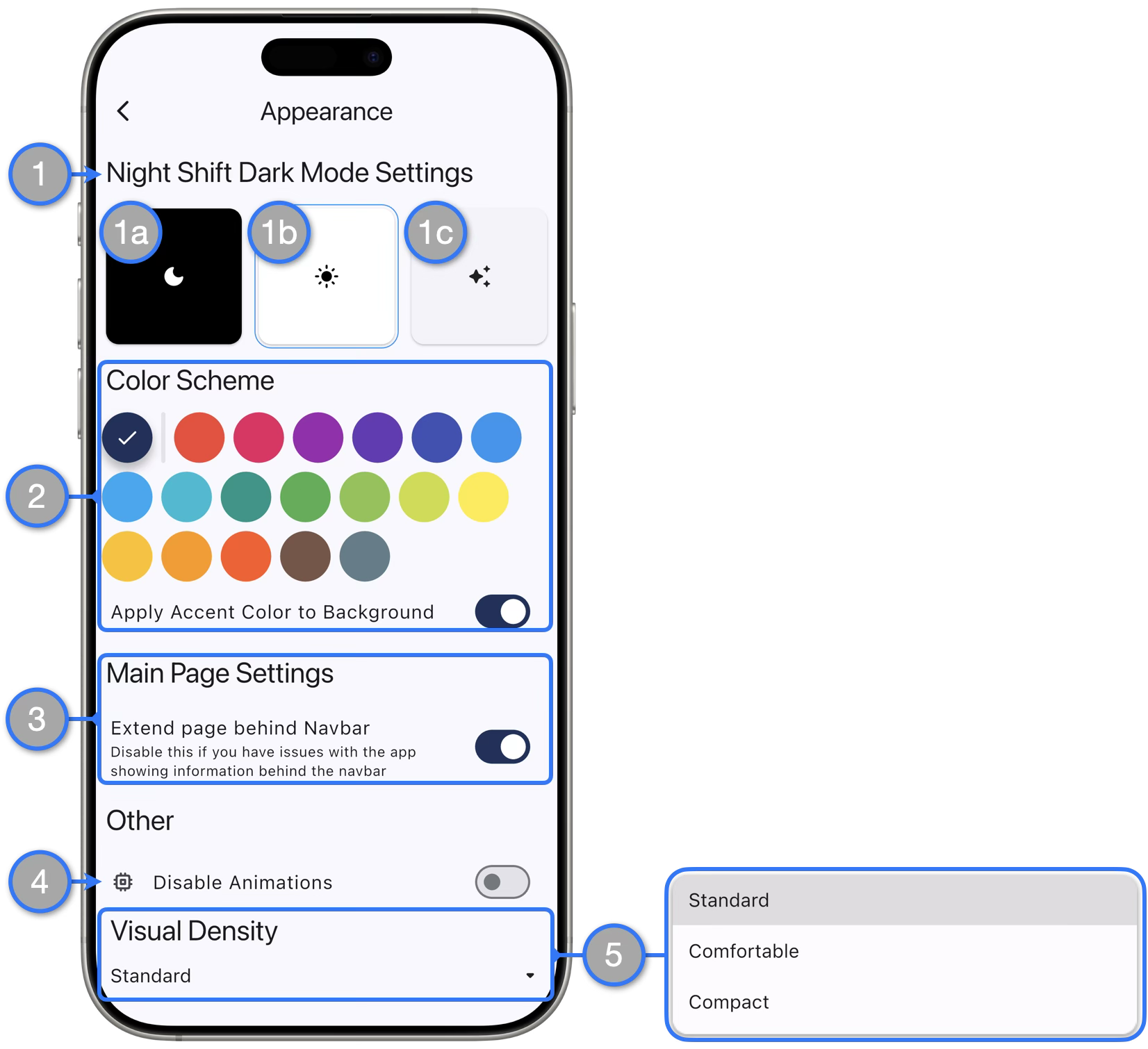
- Night Shift Dark Mode Settings — Use these options to set the overall theme of your mobile app:
- Dark Mode — When selected, Beacon will always use the dark mode theme
- Light Mode — When selected, Beacon will always use the light mode theme
- System — When selected, Beacon will follow your device settings
- Color Scheme — Personalize the accents color scheme for your mobile app
- Main Page Settings — Control your Home Screen looks. Use the toggle to select the desired information display
- Disable Animations — Use the toggle to enable / disable interface animation when interacting with the app. Disable Animations if your device becomes slow or gets stuck in certain activities
- Visual Density — Adjust the space displayed between elements to get more information on view. Options are: Standard, Comfortable or Compact.
The Preference settings menu allows users to select their preferred measurement units currently used on Beacon. More settings will be added as we continue to expand the capabilities of the platform
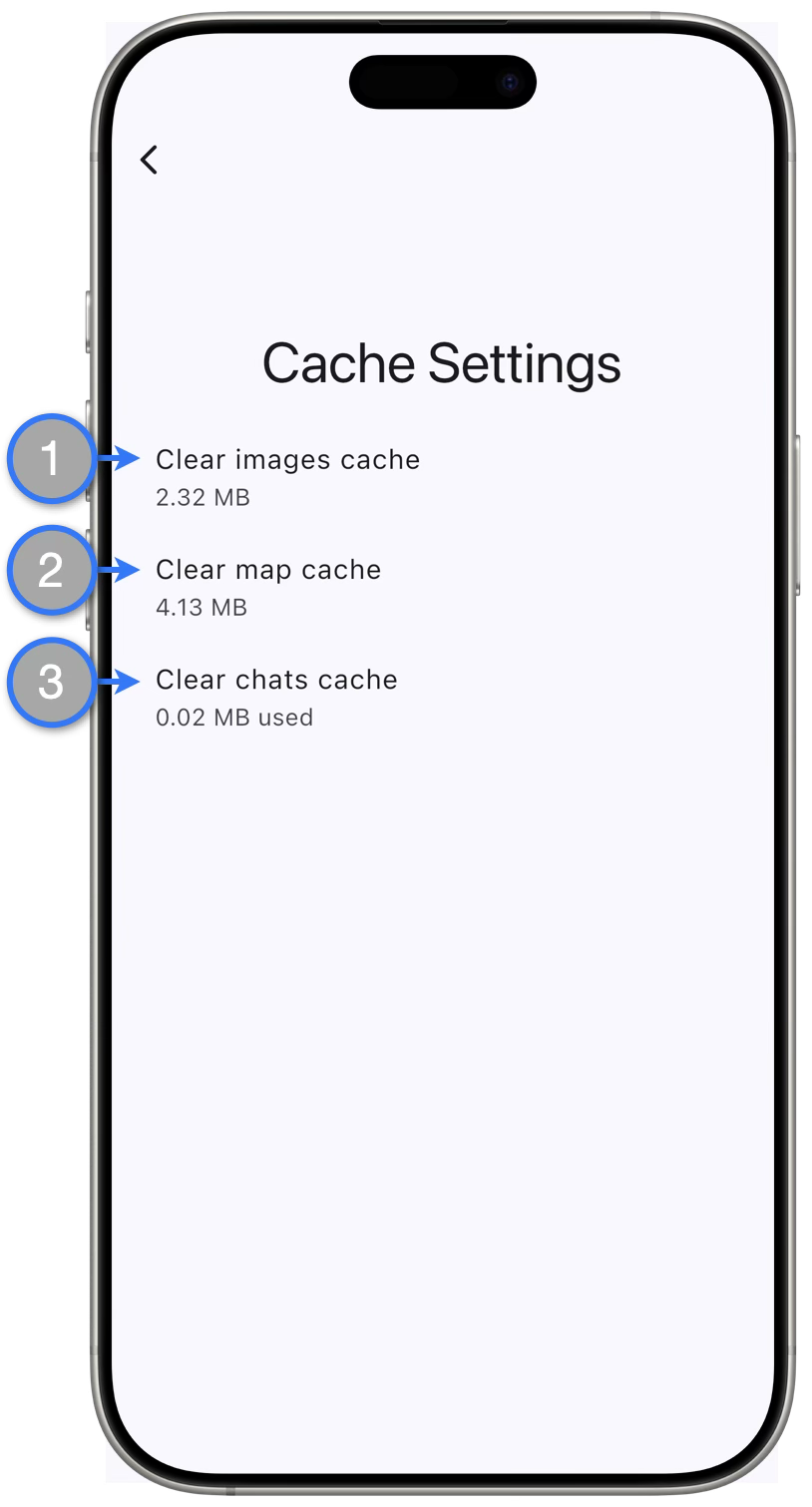
- Clear images cache — Shows the amount of memory being used for images viewed inside the app. Tap clear the memory
- Clear map cache — Shows the amount of memory being used for cached map tiles. Tap clear the memory
- Clear chats cache — Shows the amount of memory being used for cached chats. Tap clear the memory
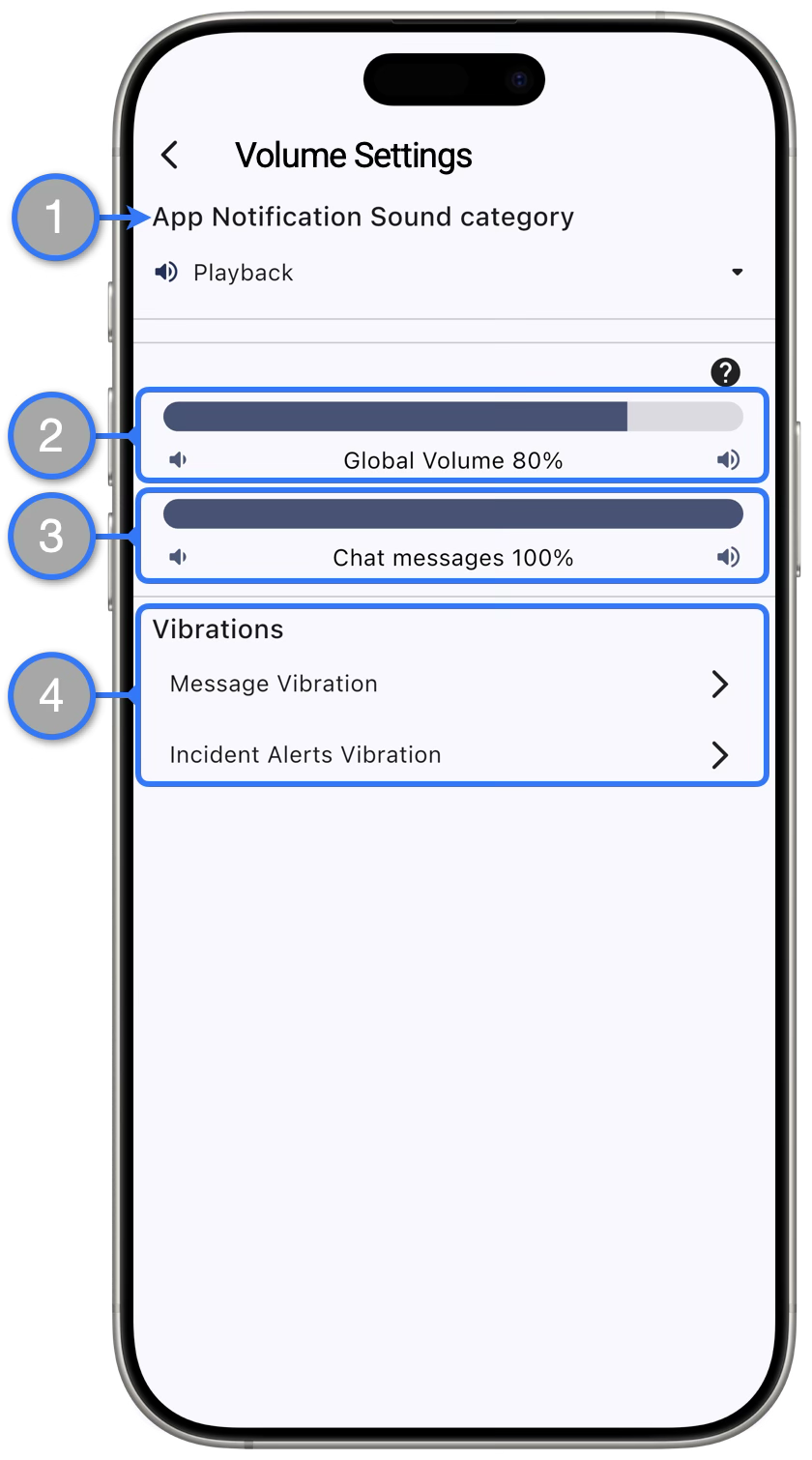
- App Notification Sound Category — Mostly applicable to android devices; allows options for users to select which Sound Volume category will Beacon use for In-App notifications
- Global Volume Slider — Controls the In-App notifications volume. For iOS users, the global volume setting gets limited by the device media volume
- Chat Messages Volume Slider — Controls the Chat Messages In-App notifications volume
- Vibrations Selection — You can separately set the desired vibration for Chat Messages and Incident Alerts In-App notification
The System Status section shows technical data useful for trouble shooting and Support Requests