'/%3E%3Cpath%20fill='%23b2b2b2'%20d='M241%20382q0%2016%2017%2026%2017%2011%2042%2011t42-11q16-11%2017-26V269H241'/%3E%3Cpath%20fill='%239f7e00'%20d='M241%20379q0%2014%208%2023%209%209%2021%209%2014%200%2021-9%209-9%209-23V269h-59'/%3E%3Cpath%20d='M241%20339v-70h59v110q0%2014-9%2023l-6%205v-68h-15v72q-8%200-14-4v-68zm59%2040c0%2022%2015%2032%2029%2032%2021%200%2030-18%2030-32v-40h-59'/%3E%3Cpath%20fill='%239f7e00'%20d='M266%20277v5h2v12h-3v-5h2v-5h-9v5h2v5h-4v9h3v18h-5v10h34v-10h-5v-18h3v-9h-4v-5h2v-5h-9v5h2v5h-3v-12h2v-5zm42%20101q0%2010%206%2017%206%206%2015%207%2010-1%2016-7%206-7%206-17v-29h-43'/%3E%3Ccircle%20fill='%230044ad'%20cx='329.5'%20cy='372'%20r='6'/%3E%3Cellipse%20fill='%230044ad'%20cx='300'%20cy='340'%20rx='16'%20ry='21'/%3E%3C/svg%3E)

The Sidebar is used to view and locate active incidents and available and assigned responders.
Sidebar Navigation
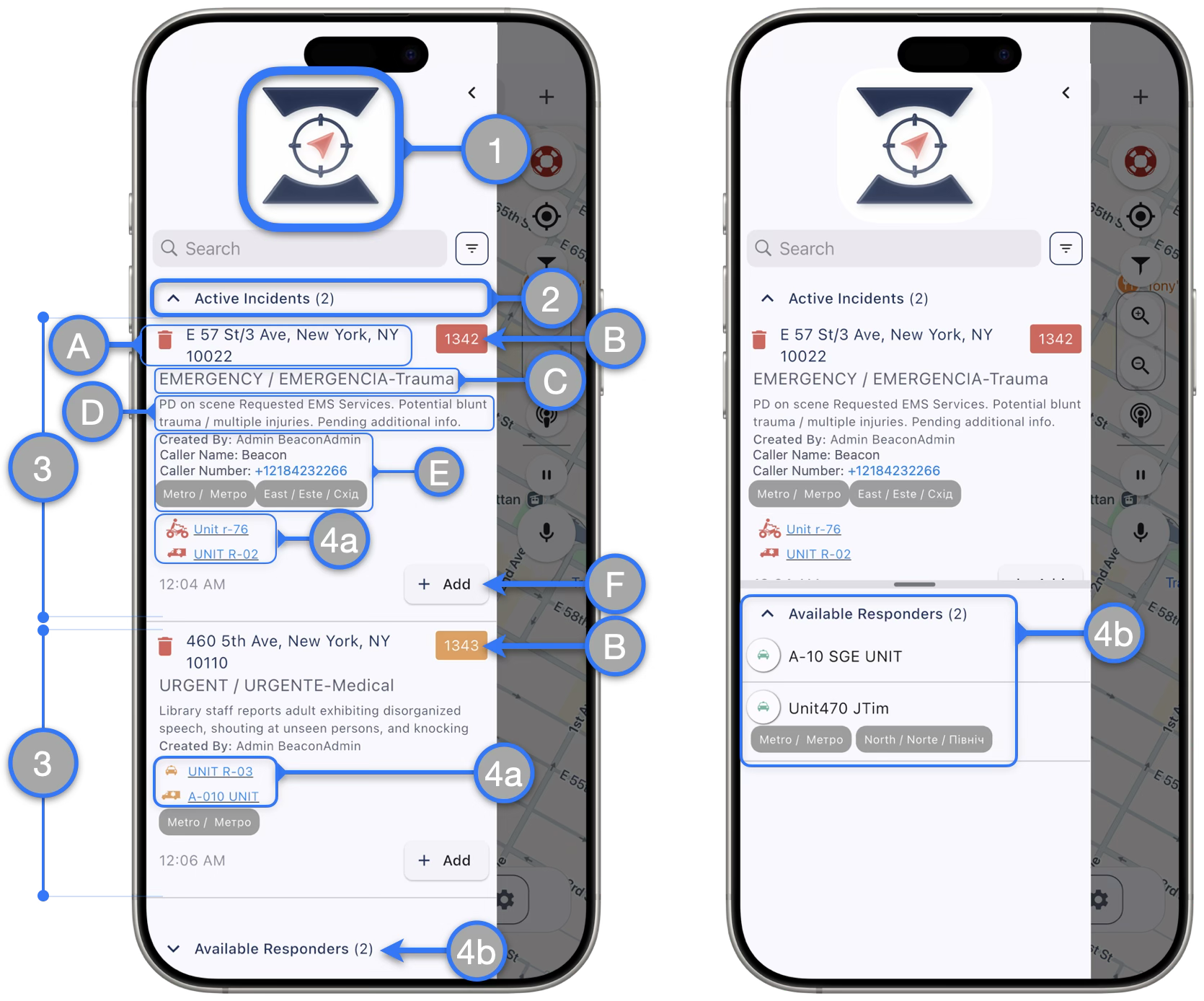
- Custom Logo — Custom agency logos can now be displayed on splash screen and the sidebar. (A custom logo must be uploaded through the Beacon Web App)
- Active Incidents Section — Displays a count of current active incidents. Expanding the section will show a summary of all active incidents visible to the responder account.
- ** Please note that the ability to see active incidents depends on Agency Settings set by managers and Special Permission being granted for the responder account when decided by account managers **
- Incident Summary – When an active incident is visible to the responder, the sidebar will display a summary of incident related information; each incident will have it’s own summary. Clicking over the incident number or address will close the sidebar, center the map on the incident marker and display the incident card.
- Incident Location — Displays the address of the incident, as entered by the dispatcher
- Incident Number — This is a identification number for each incident
- Incident Labels — Displays the class, category and/or type of incident
- Additional Incident Details — Responders will be able to see additional incident details without the need to open the incident card. If entered by the dispatcher, responder will se here: Caller Name and Number, who dispatched the incident (Created By), and the time the incident was created
- Add + Button — Will be available when a responder has been assigned to that incident. This button works as a quick access menu for responders to:
- Add Incident Notes
- Add Case Reports *(This is an Add-On feature available and is available if configured by Agency Management)
- Add Responders

- Responders — Press on a responder to center the screen on their location*** and to display their contact info, including voice and chat buttons
If your account has Supervisor View permission, tapping a responder will center your map on their location. ***
- Assigned Responders — Responders assigned to an active incident will be displayed colored according to the Dispatch Mode along with the incident number they are attending and their current status
- Available Responders — Responders who are available appear in green
*** Note: Special permissions required to see responder location. If the responder you are trying to see on the map is using SMS only or has not enabled location permissions correctly on their device, their location will not be available..
Sidebar Active Incident Filtering
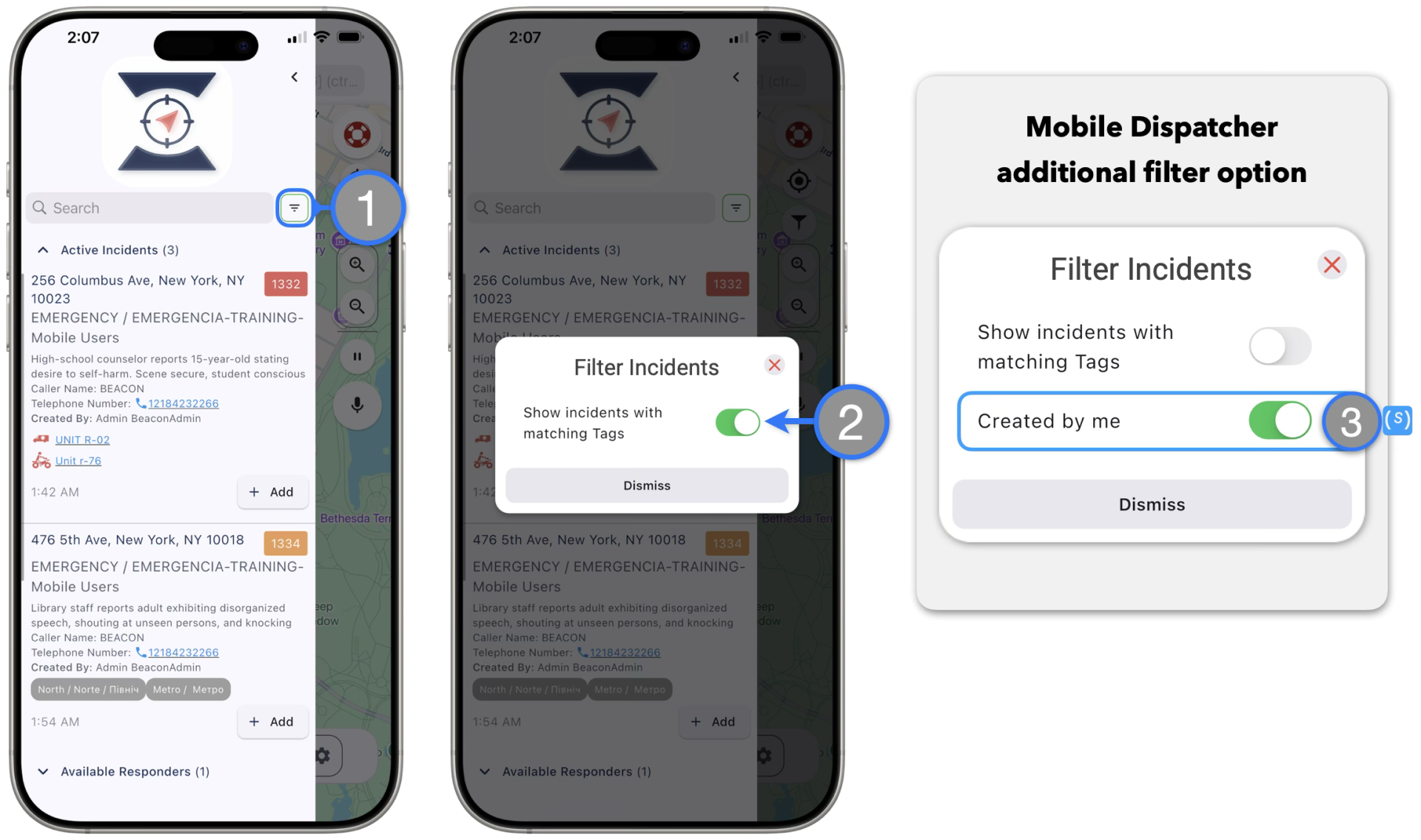
Responders can filter the side bar active incidents to only display incidents that match their tags.
To filter active incidents on the sidebar:
- Tap on the Filter button next to the sidebar search bar
- On the emerging dialog, tap the switch to only Show incidents with matching Tags
- Responders with Mobile Dispatcher Permission will see an additional switcher that they can use to filter active incidents and display only incidents that they have created through the mobile app dispatcher feature
 — Indicates feature that requires special permission. See all available Special Permissions and learn more here.