
Summary
In this tutorial, we walk you through the essential steps to get started with the Beacon Web Responder Interface. It’s crucial to ensure your account is registered correctly, especially your phone number and email, as these are needed to receive access codes. We highlight the importance of using compatible browsers like Chrome or Edge and changing your map provider to OSM for better functionality. Please make sure to follow these steps carefully to avoid any issues when accessing the interface.
Key Points
0:00 – Introduction to Tutorial
1:05 – Browser Compatibility
2:30 – Setting Site Permissions
3:37 – Beacon Settings Page
Step-By-Step
* Important: Ensure you are registered as a responder in your Beacon agency account before attempting to access the Beacon app. Contact your supervisors or managers for account registration.
To preform Initial Sign Up for the Web Responder App:
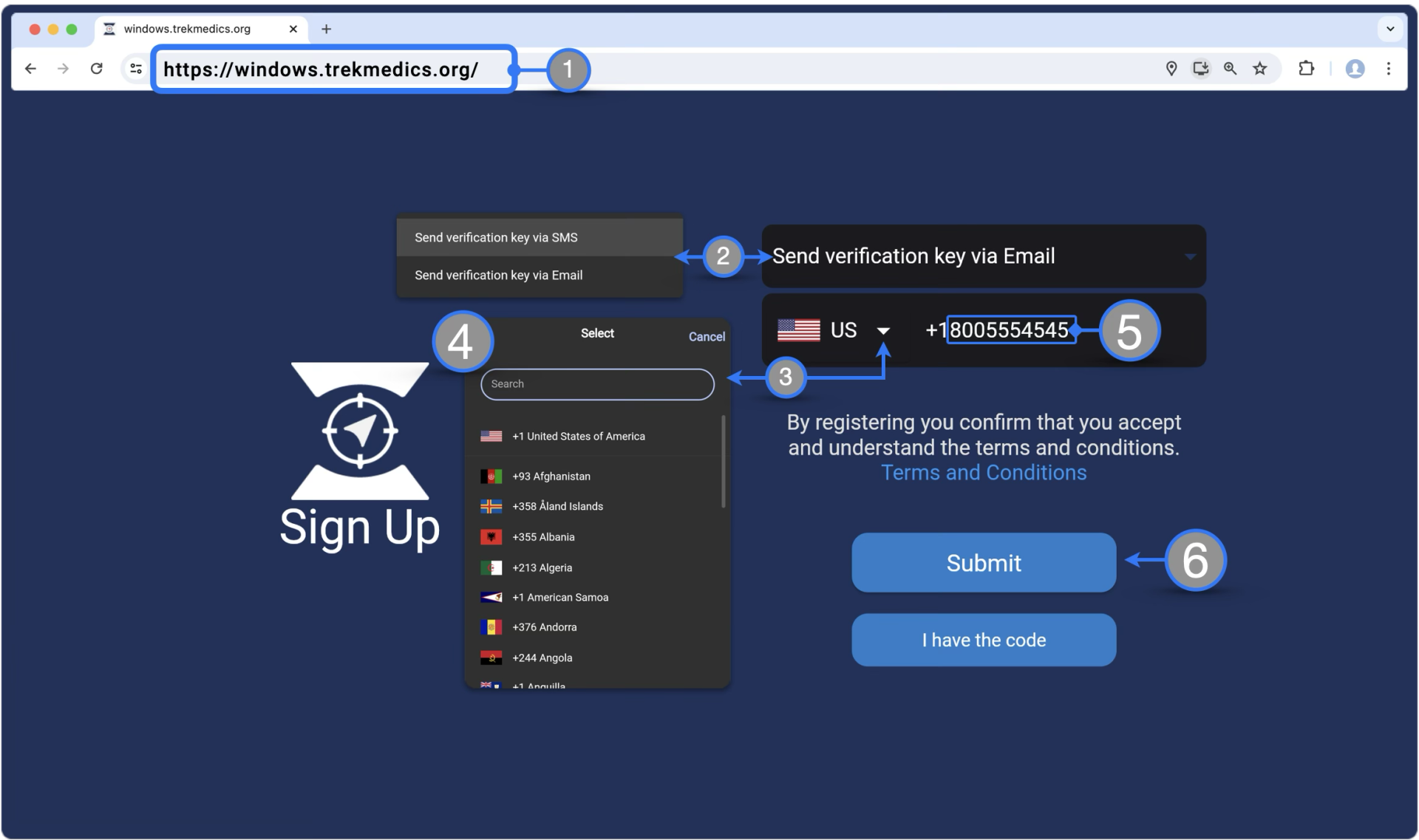
- Open the open the following link in a compatible web browser (currently Chrome or Edge) : https://windows.trekmedics.org/
or, if you have desktop installed the Web Responder App, Click the Beacon icon to open the web interface. - Select the verification key delivery method:
- Send via SMS (Text Message)
- Send via Email
- Click the dropdown menu arrow to show the list of phone international country codes.
- Select the correct flag for you phone number’s country code
- Enter the rest of the phone number on the field
- Important: Do not include the digit zero ( 0 ) if after the country code the phone number begins with it. For example, some UK phone numbers start with 0 after their country code; for those cases:
- ❌ : +44 0 1234 567899
- ✅ : +44 1234 567899
- Important: Do not include the digit zero ( 0 ) if after the country code the phone number begins with it. For example, some UK phone numbers start with 0 after their country code; for those cases:
- Click submit when Ready.
If the phone number is registered to a responder account Beacon will redirect to the Verification screen
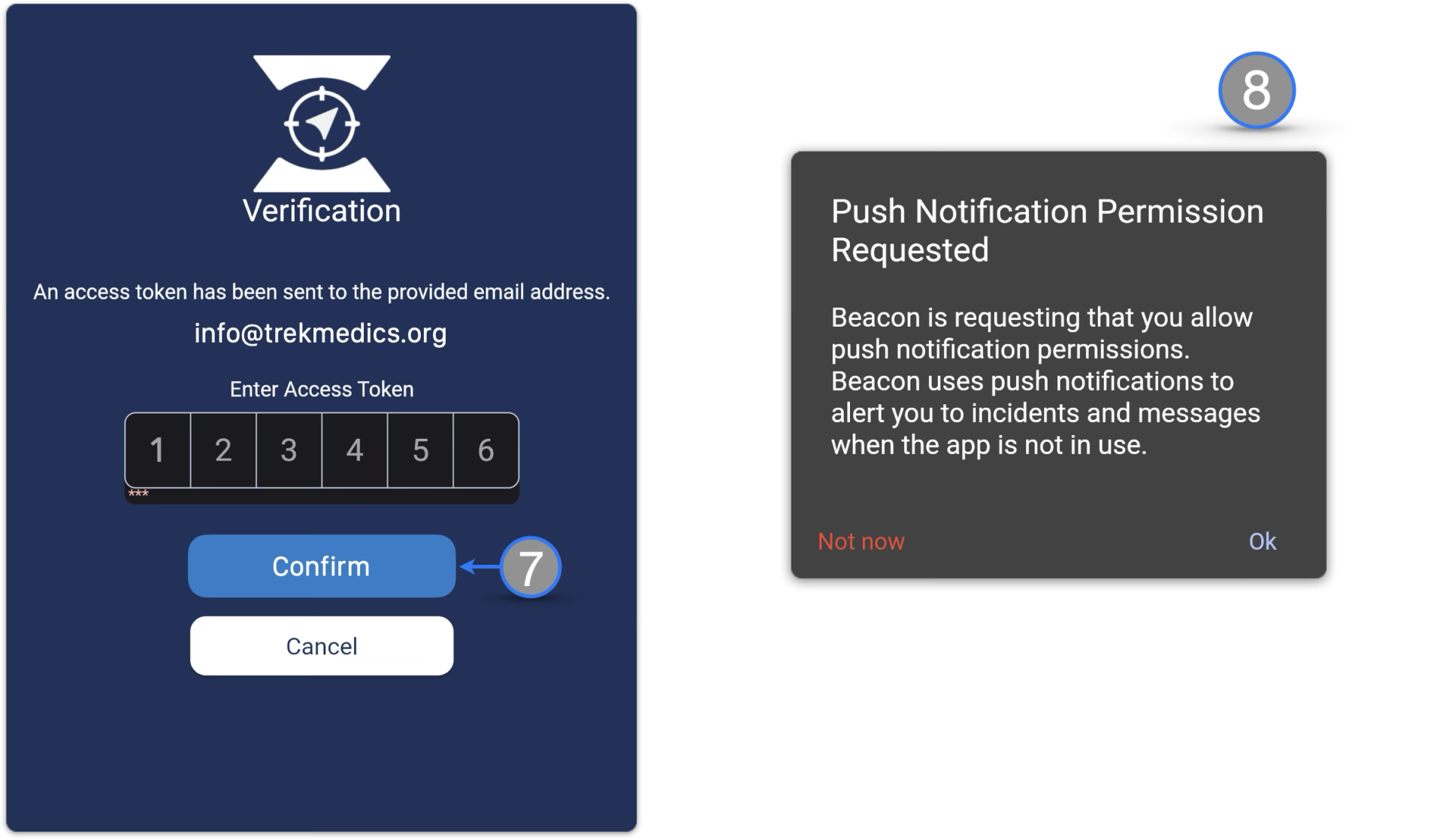
- Enter the verification key received by the selected delivery method. If the code entered is correct, Beacon will allow access to the interface.
- Make sure to read the different dialogs that will appear on screen as they will set initial configurations that could include Notifications and Location Sharing settings.
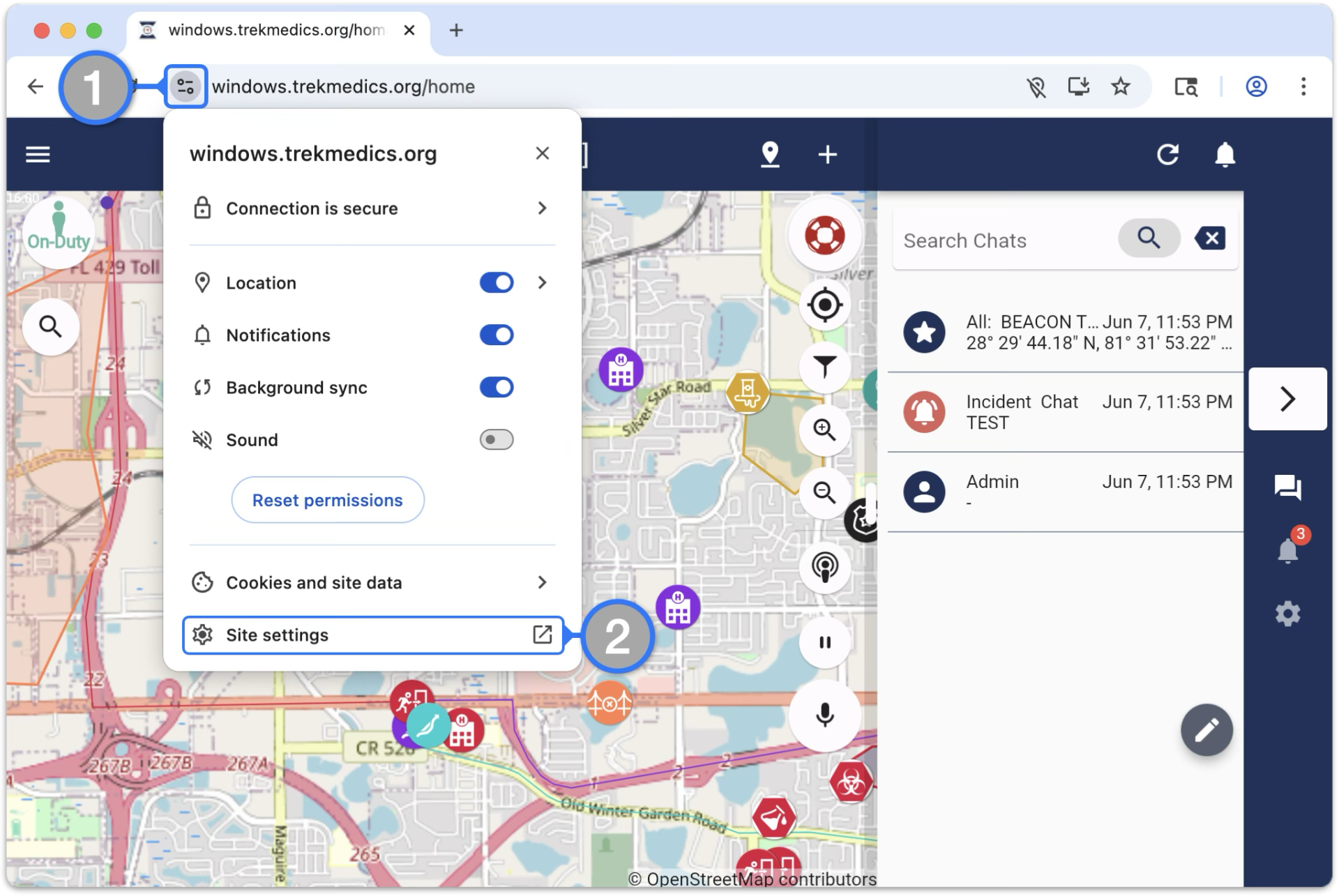
- Click the icon to the left of the website address bar
- Locate and click on Site settings, a new tab will open
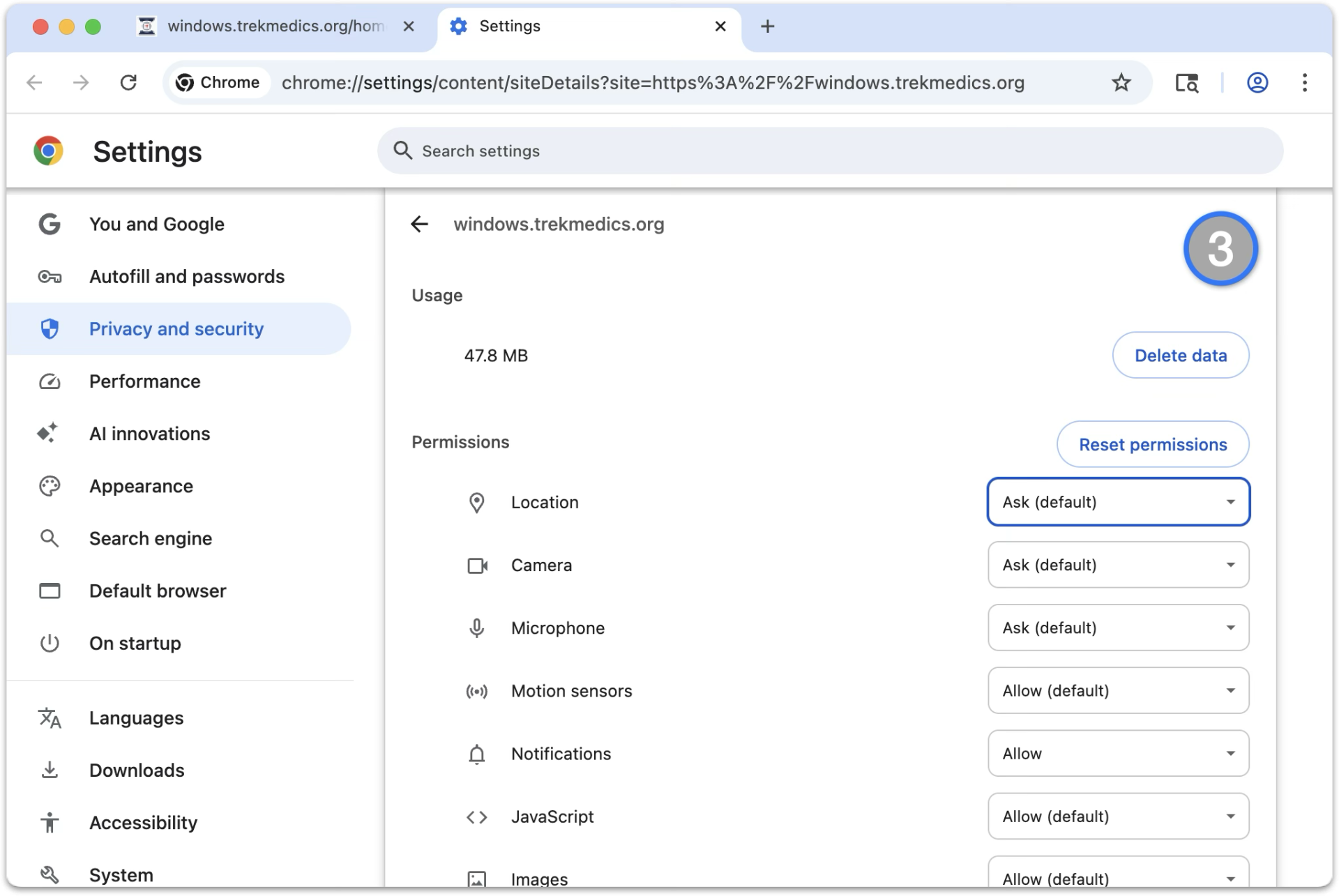
- Review the Permissions list and allow access to the features you’ll be using.
We suggest the following ones to start:- Location
- Microphone
- Notifications
- Sounds
- Background Sync
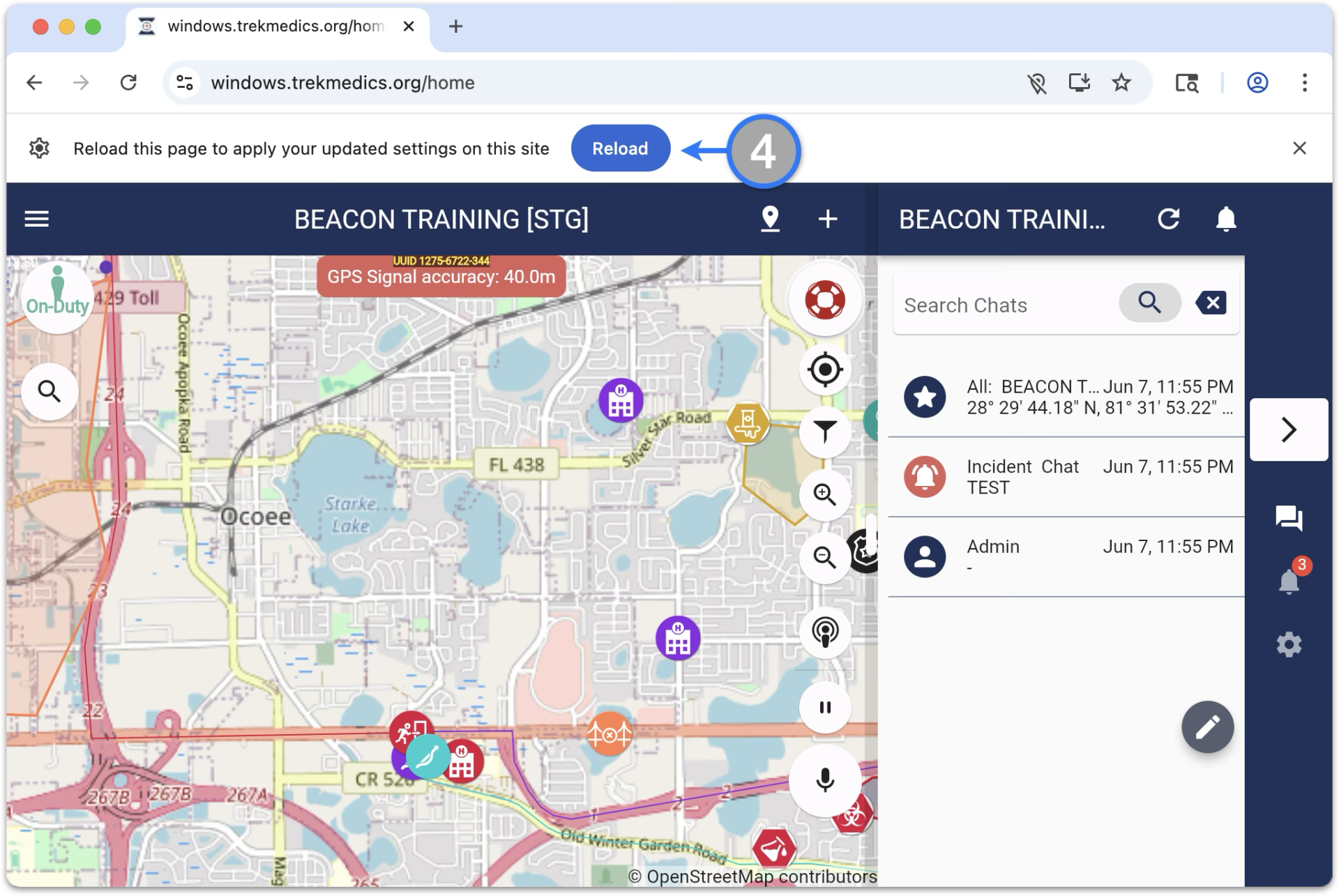
- Once finished with site permissions, go back to the Web Responder Interface tab and Reload the site to apply changes
* Important: Due to the nature of the interface, Google maps provider is not fully compatible and can sometimes interfere with certain actions. For that reason we have the OpenStreetMaps provider as the suggested option for the web responder interface.
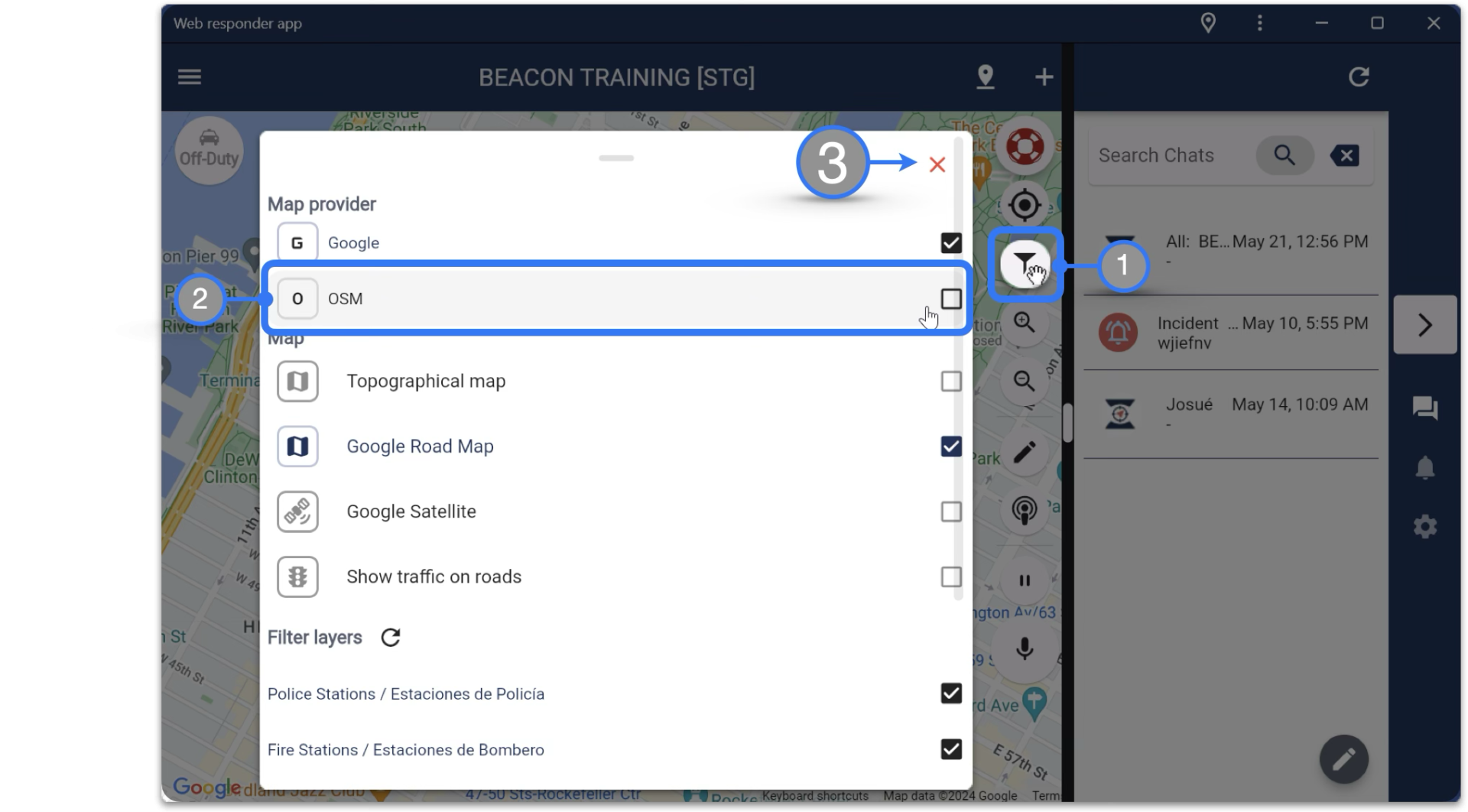
To change the maps provider:
- While on the home screen, click the Map Filtering icon
- Under the Map provider section locate and click the checkbox for OSM
- Close the Map Filtering menu when the change is complete
Check the following settings:
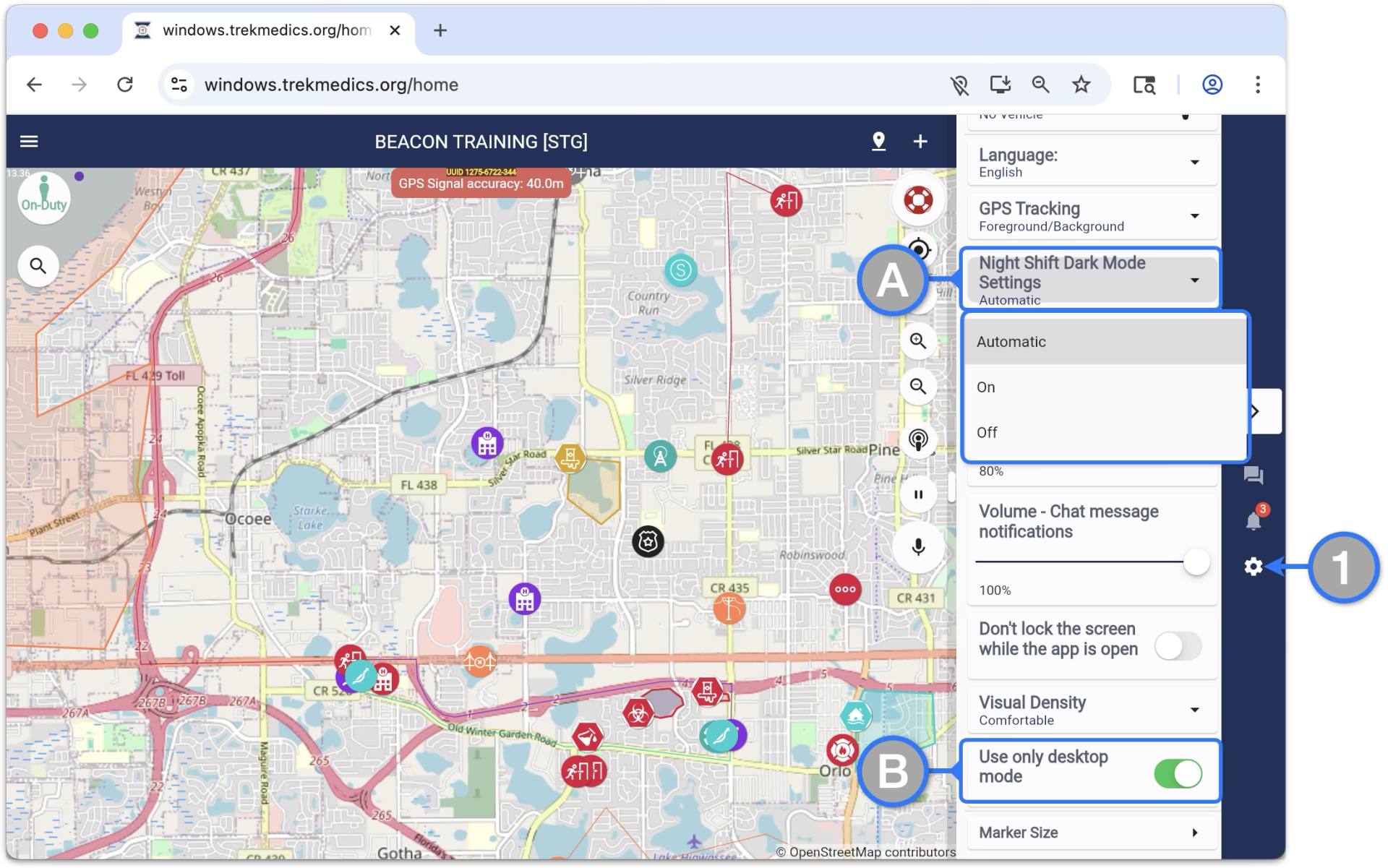
- Click the gear icon in the right side navigation bar to access the Beacon Settings Page
- Scroll on until locating the Night Shift Dark Mode Settings
- Select the preferred option from the dropdown. Some devices will be automatically set to dark mode by default.
- Enable Use only desktop mode
- Very useful for device features compatibility and usage of virtual keyboard for touchscreen capable devices.
- Scroll on until locating the Night Shift Dark Mode Settings